Philips BDL5050D install instructions
This guide covers two methods for installing Fusion Signage on a Philips BDL5050D display:
- Installation via Philips Wave
- Installation via APK File on USB
Before you begin
- Ensure the display is connected to the internet.
- Have access to your Fusion Signage Portal.
- Ensure the display is running the latest available firmware where possible.
Initial setup out of the box
Follow the on screen prompts to complete the initial screen setup. This should take you through selecting a language, configuring security settings and setting up your network. Once initial out of the box setup is complete, continue with installing Fusion Signage.
Note: Please leave the SICP network port on the default (5000). If you need to change this back go to the Android menu (home,1,8,8,8) -> Settings -> Signage Display -> Network application -> SICP network port
Method 1: Install Fusion Signage via Philips Wave
Using Philips Wave allows you to remotely deploy and manage Fusion Signage without physically accessing the display after enrolment.
Enrol the Display in Philips Wave
- Power on the Philips BDL5050D and follow any out of the box setup prompts
- The Wave app should appear after these initial setup steps if it is the first time opening the device out of the box. Alternatively open the Android menu by pressing home, 1, 8, 8, 8, go to Apps, and select the Philips Wave application
- A screen will appear with a 6 digit code for you to use to claim your display
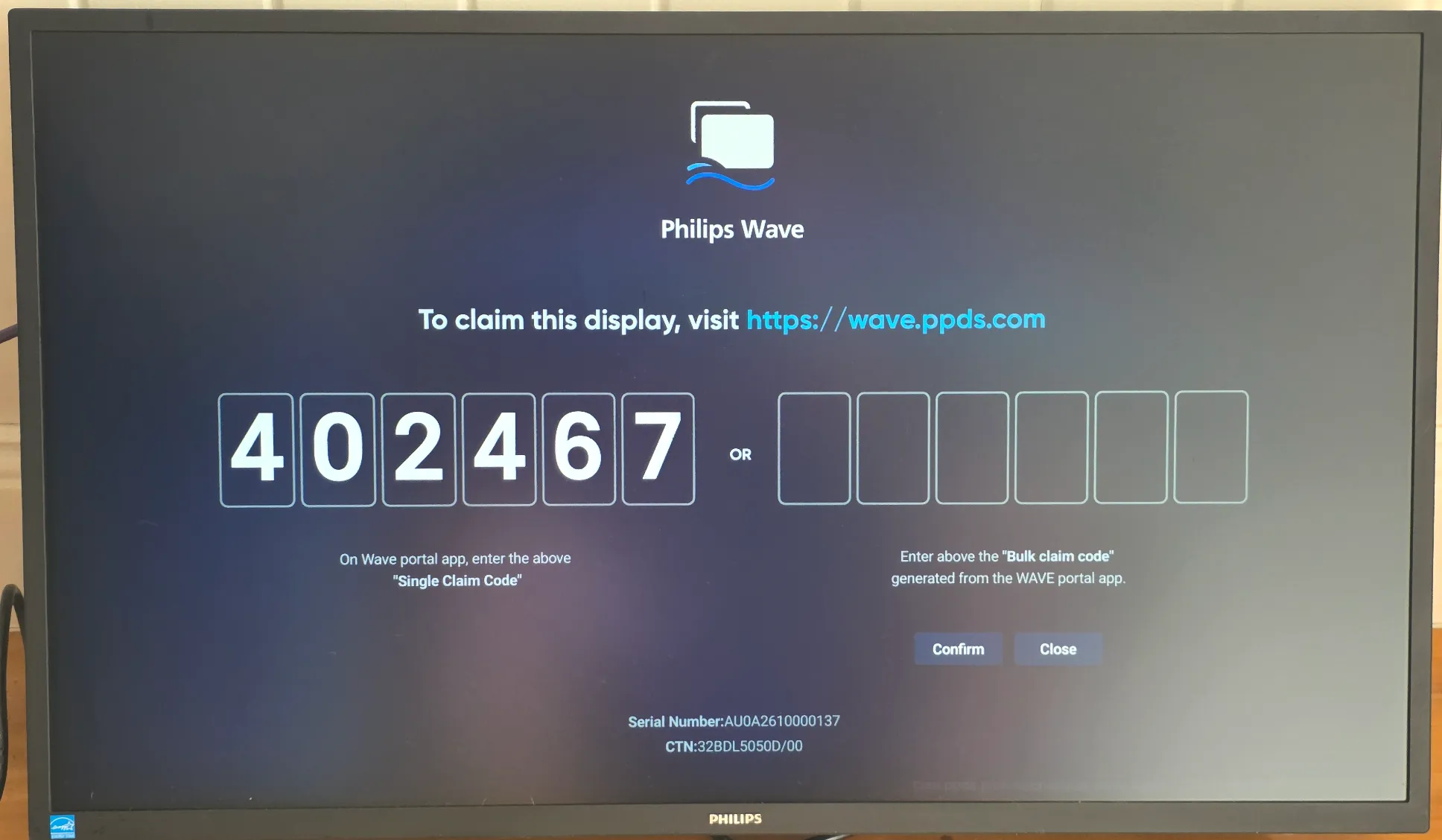
- Follow the setup instructions found herehere enrol the display in Philips Wave and then deploy the Fusion Signage application
Installation times may vary depending on network speed and device status.
Launch Fusion Signage
- Once installed, open the Fusion Signage application.
- The app will display a 6-digit Identity Code. Follow the steps herehere to add your screen to your Fusion Signage portal
Display over other apps
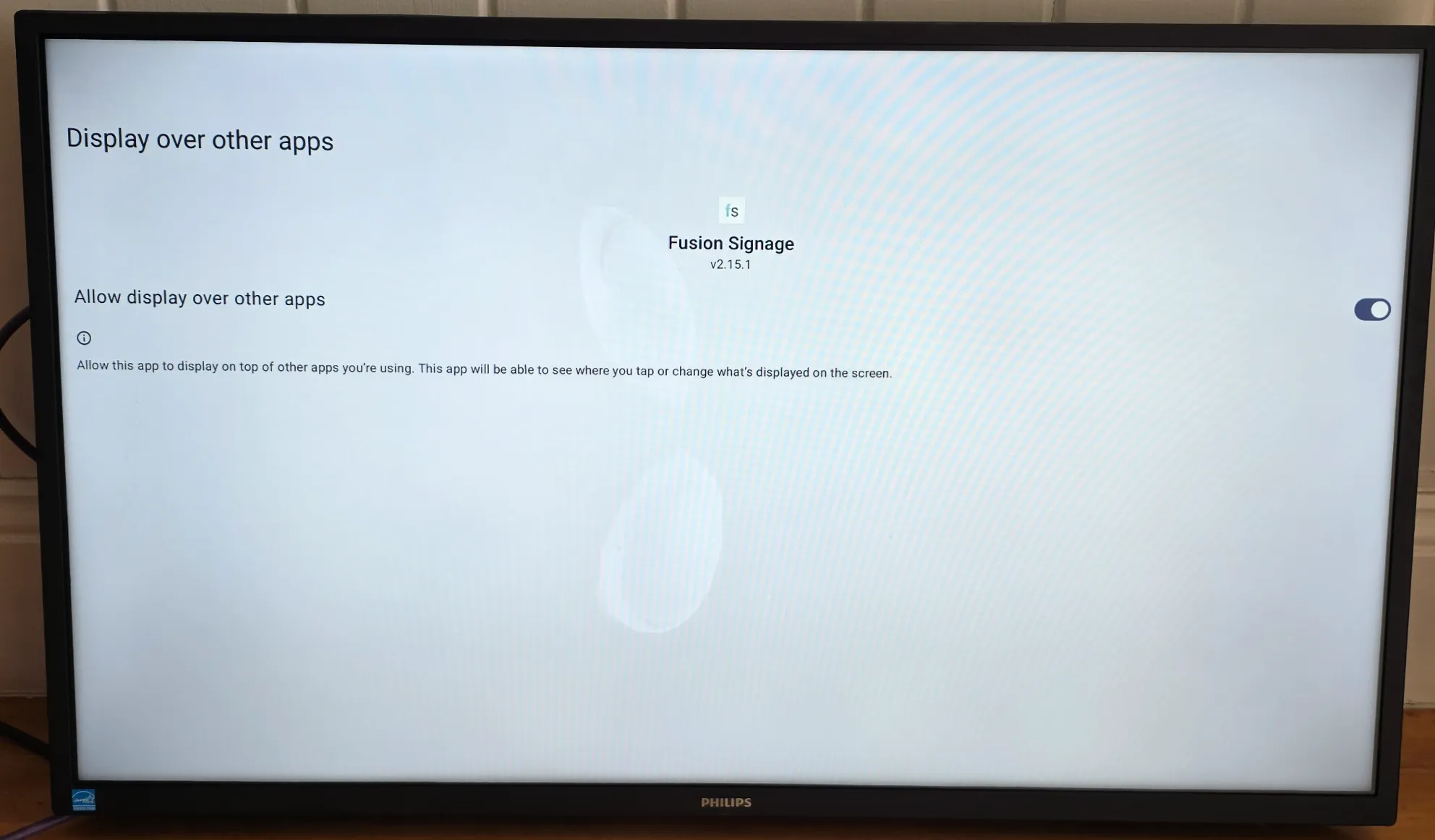
Display Over Other Apps is an Android permission that allows an application to appear on top of other apps that are currently running. Turning this setting on will allow Fusion Signage to remain visible as the primary content player and recover from interruptions and continue displaying signage content without user intervention.
To turn this setting on, go to
- Android settings (home, 1, 8, 8, 8)
- Settings
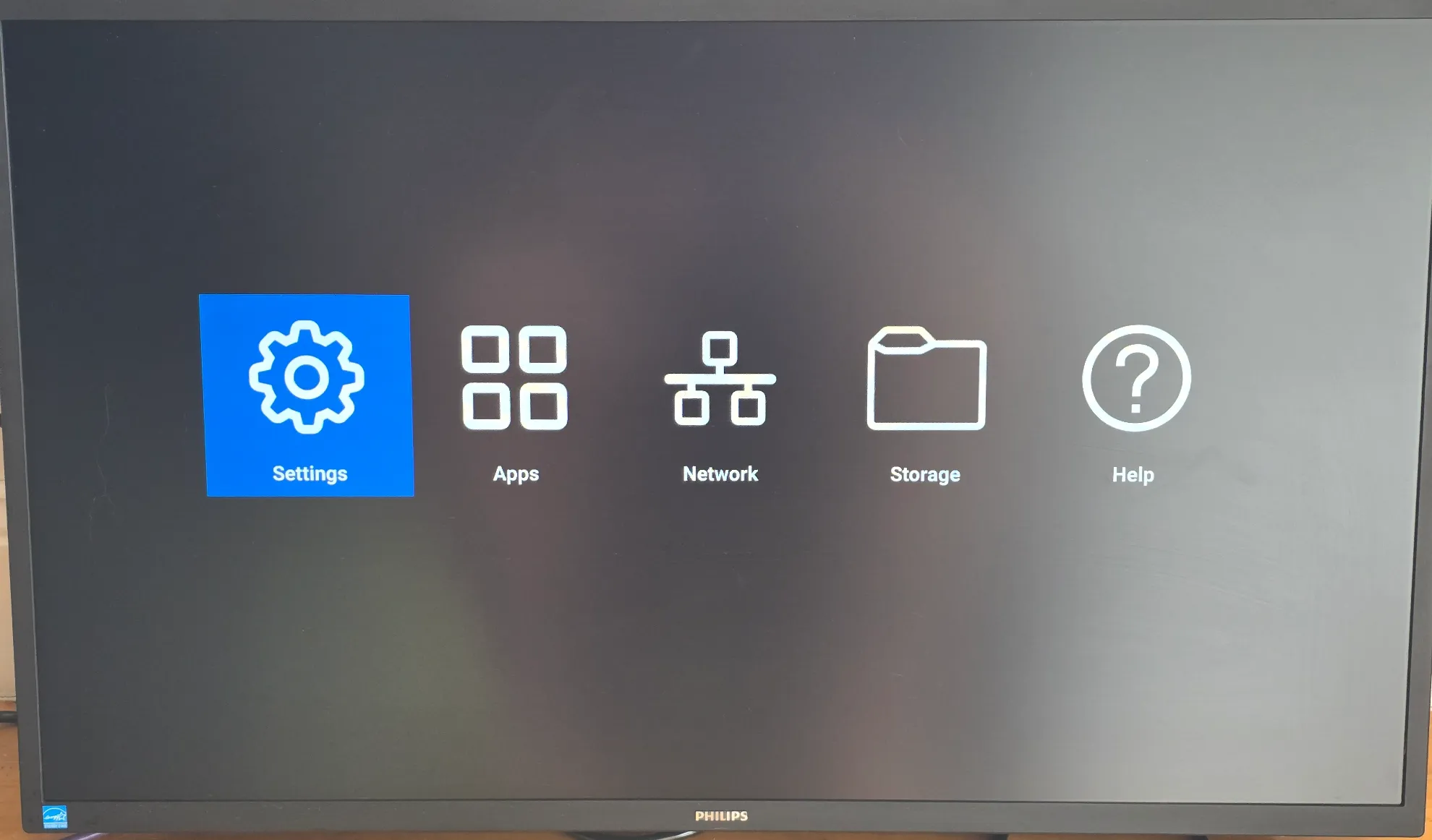
- Apps
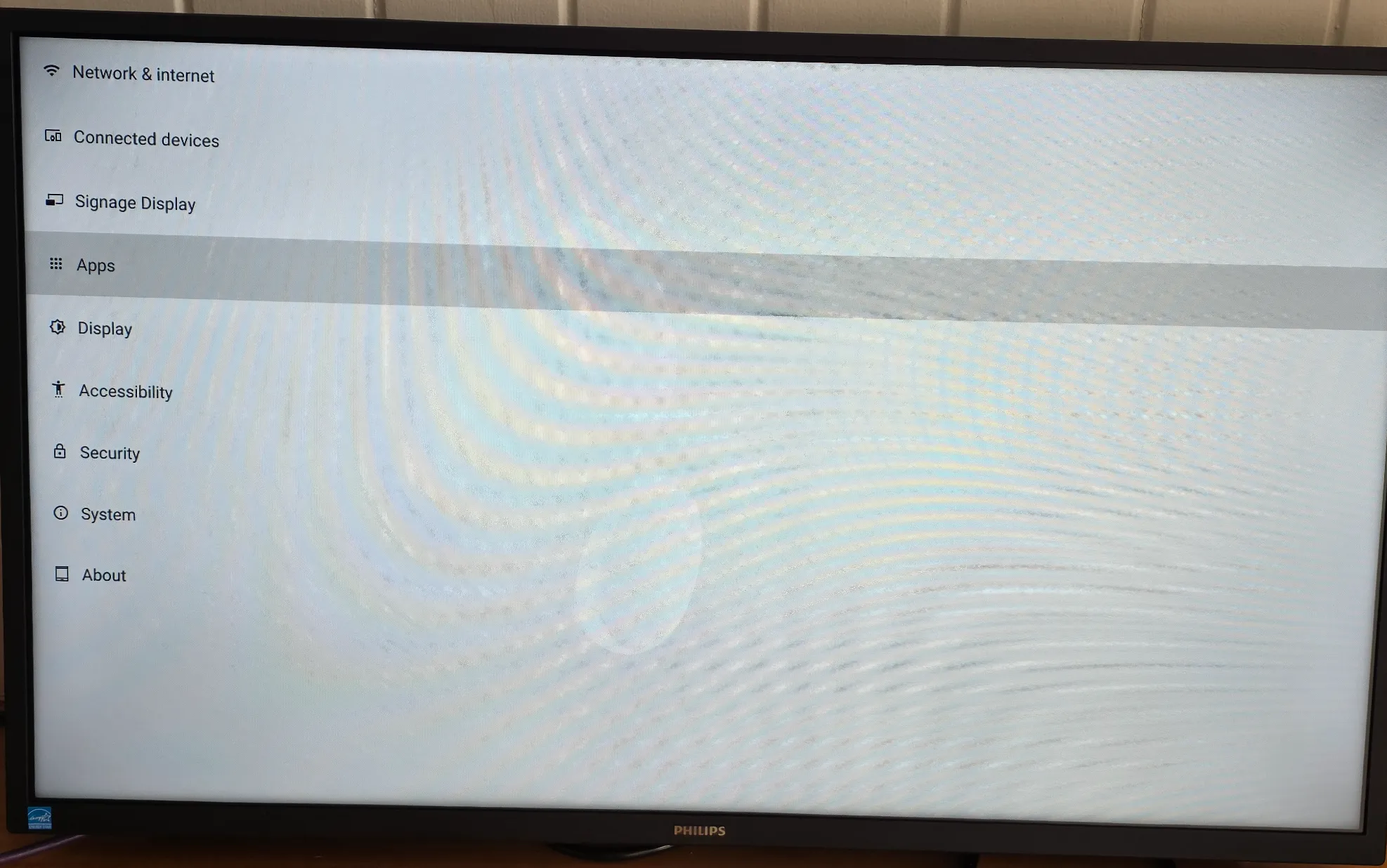
- Fusion Signage
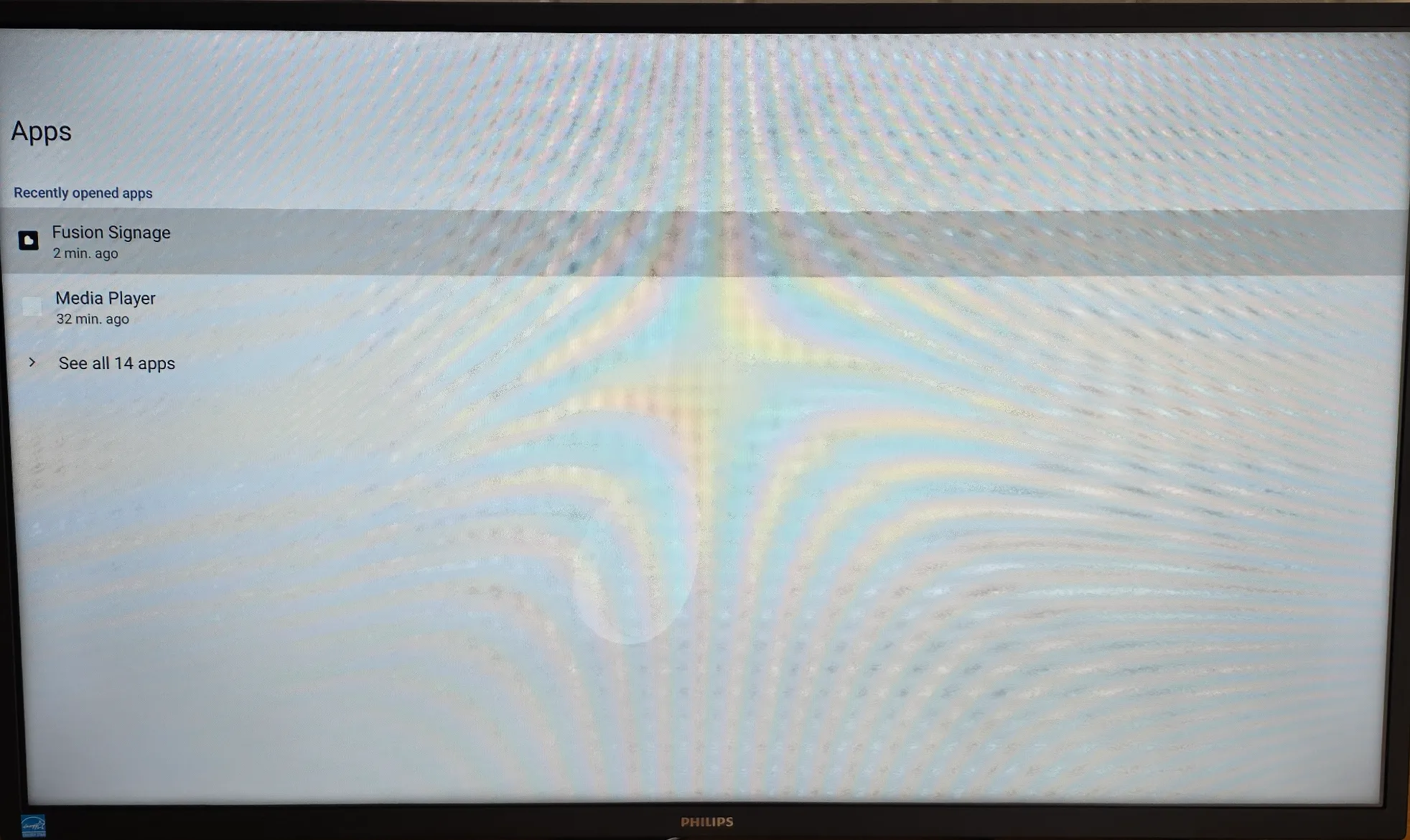
- Scroll down to Display over other apps
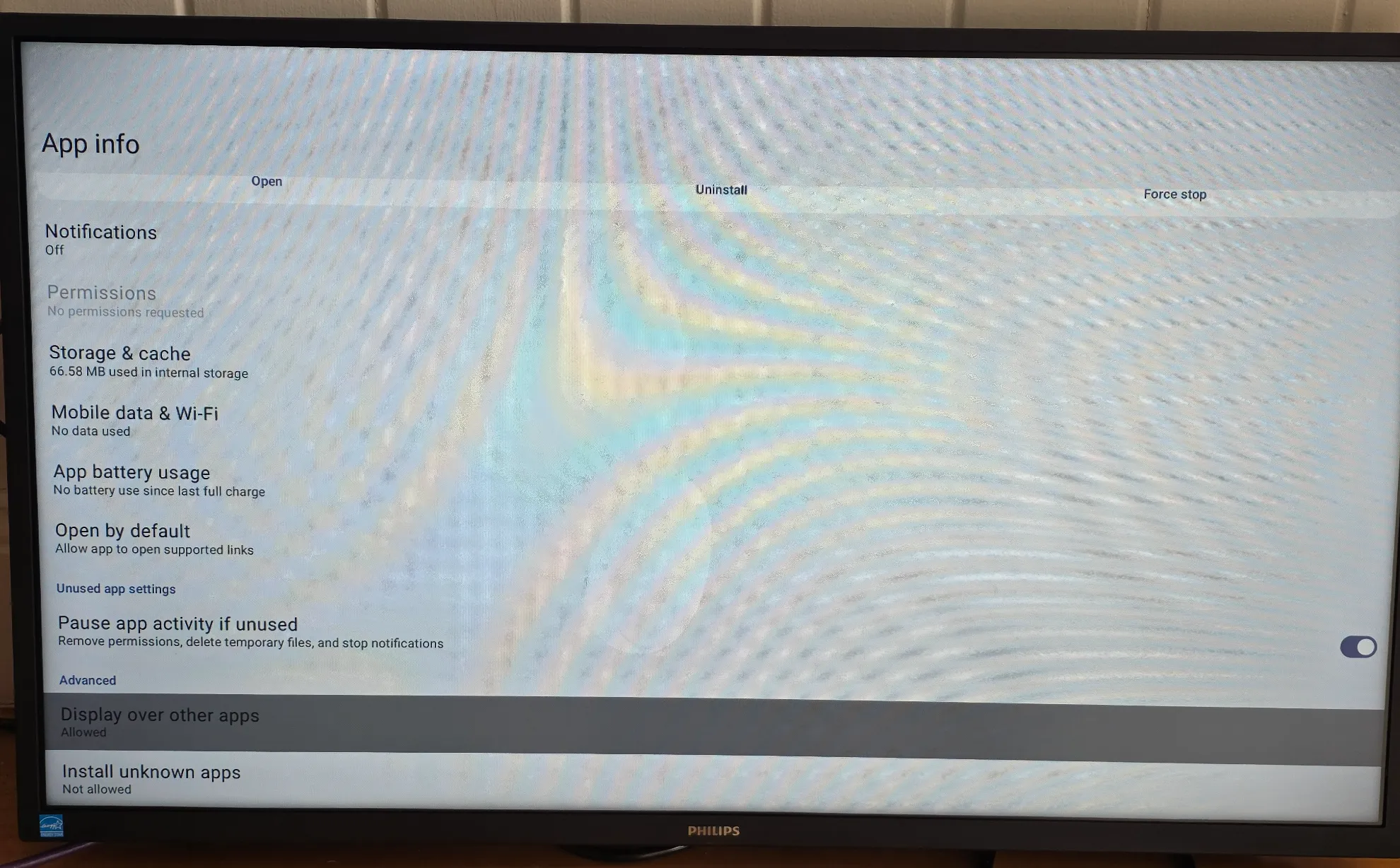
- Select Fusion Signage
- Toggle on the switch to turn this setting on
Method 2: Install Fusion Signage via USB APK Installation
Use this method if Philips Wave is not available or if you prefer to perform a local installation.
Step 1: Download the Fusion Signage APK
- Download the latest Fusion Signage APK file here
- Copy the APK file to the root directory of a USB flash drive.
FAT32 formatted USB drives are recommended for best compatibility
Step 3: Install the APK
- Insert the USB into the display
- Open the android menu (Home,1,8,8,8)
- Go to Storage
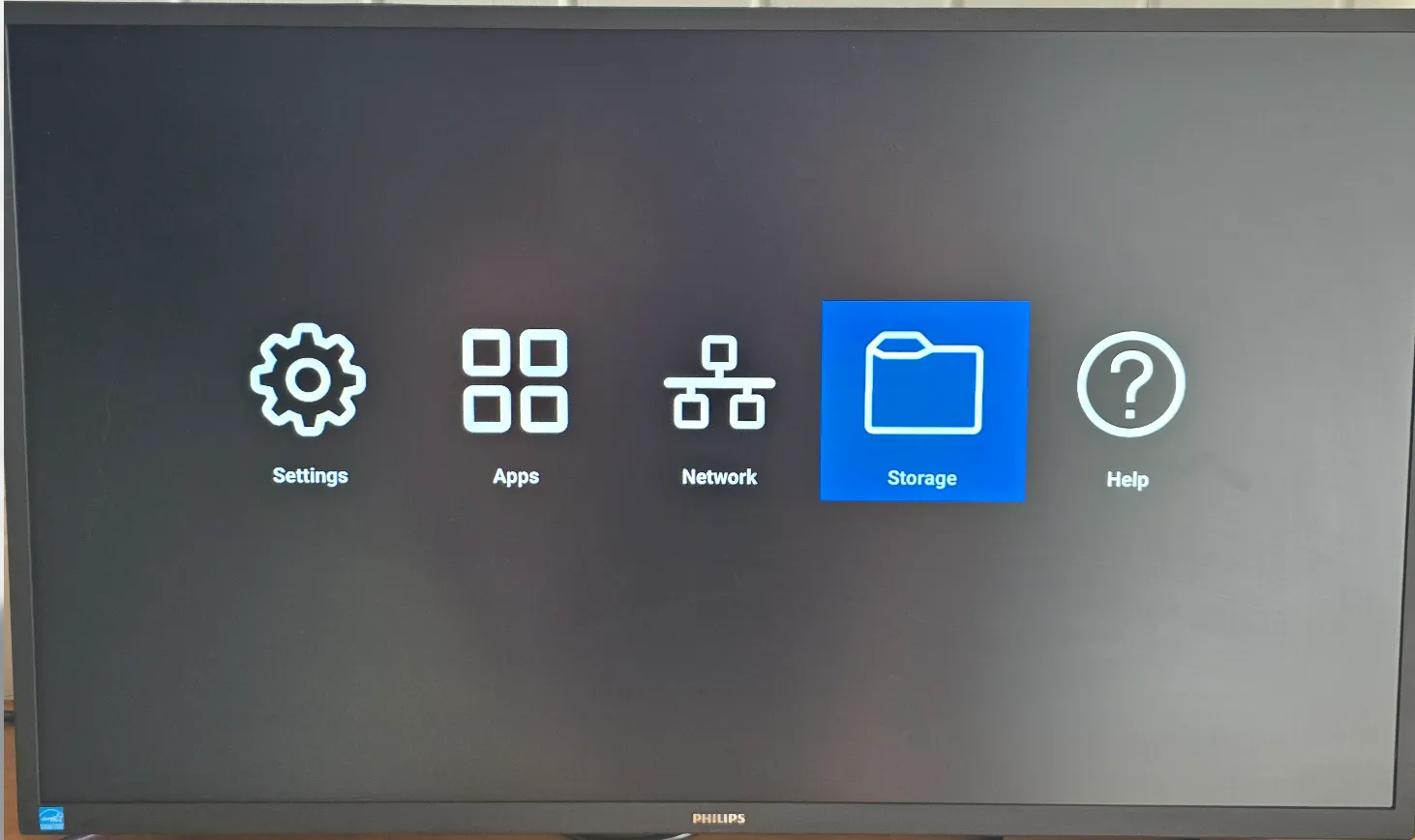
- Browse to the USB drive
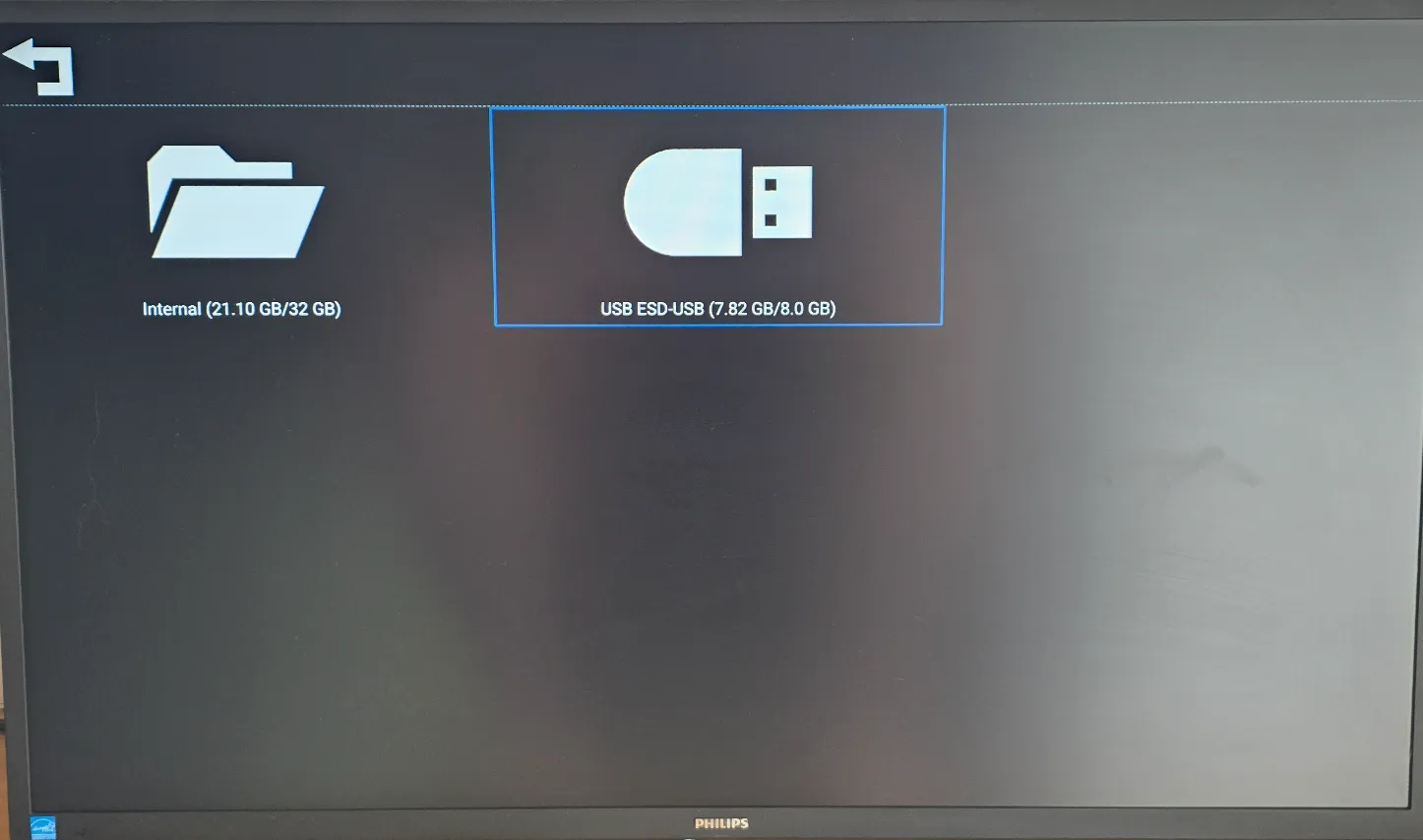
- Locate the Fusion Signage APK file
- Select the APK, open and choose Install
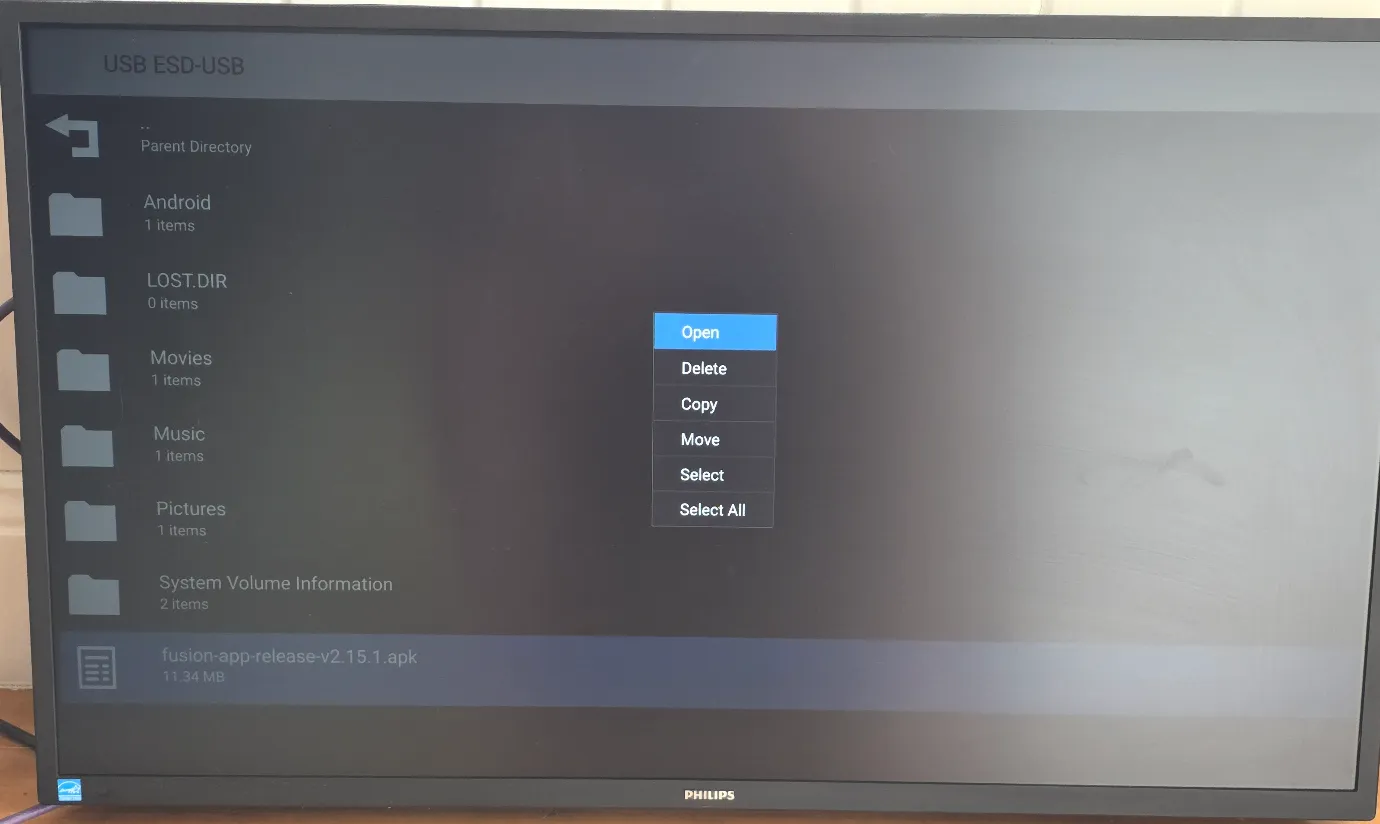
- Accept any prompts displayed on screen
- Wait for installation to complete
Step 4: Launch Fusion Signage
- Open the newly installed Fusion Signage application
- The app will display a 6-digit Identity Code
- Leave this screen displayed
Step 5: Add the Screen to Fusion Signage
- Log in to the Fusion Signage Portal
- Navigate to Deploy → Add Screen
- Enter the 6-digit Identity Code shown on the display and fill in the other details as prompted
- Click Add Screen
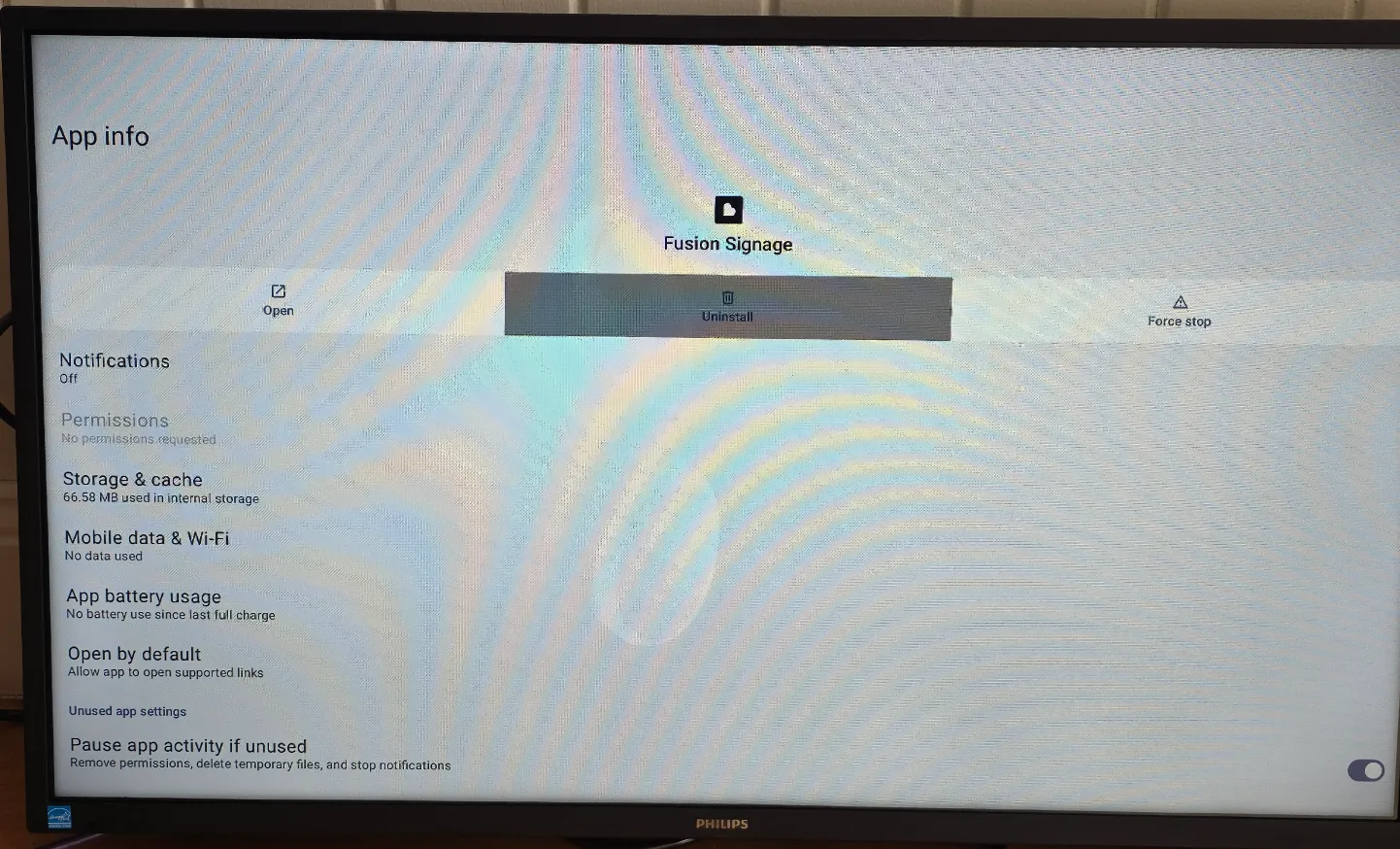
Uninstalling the Fusion Signage application
- Open the Android menu (home,1,8,8,8)
- Go to settings
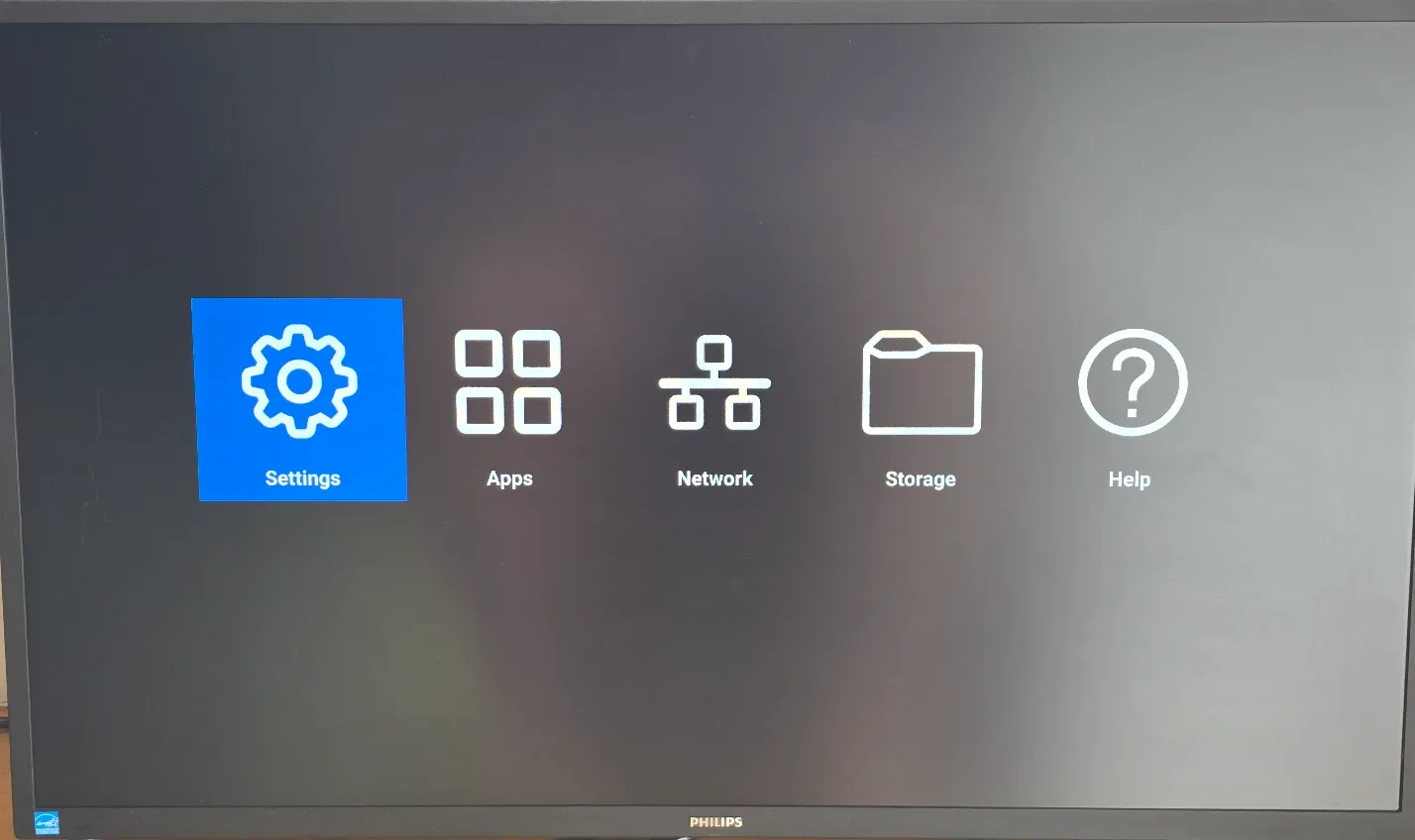
- Go to Apps
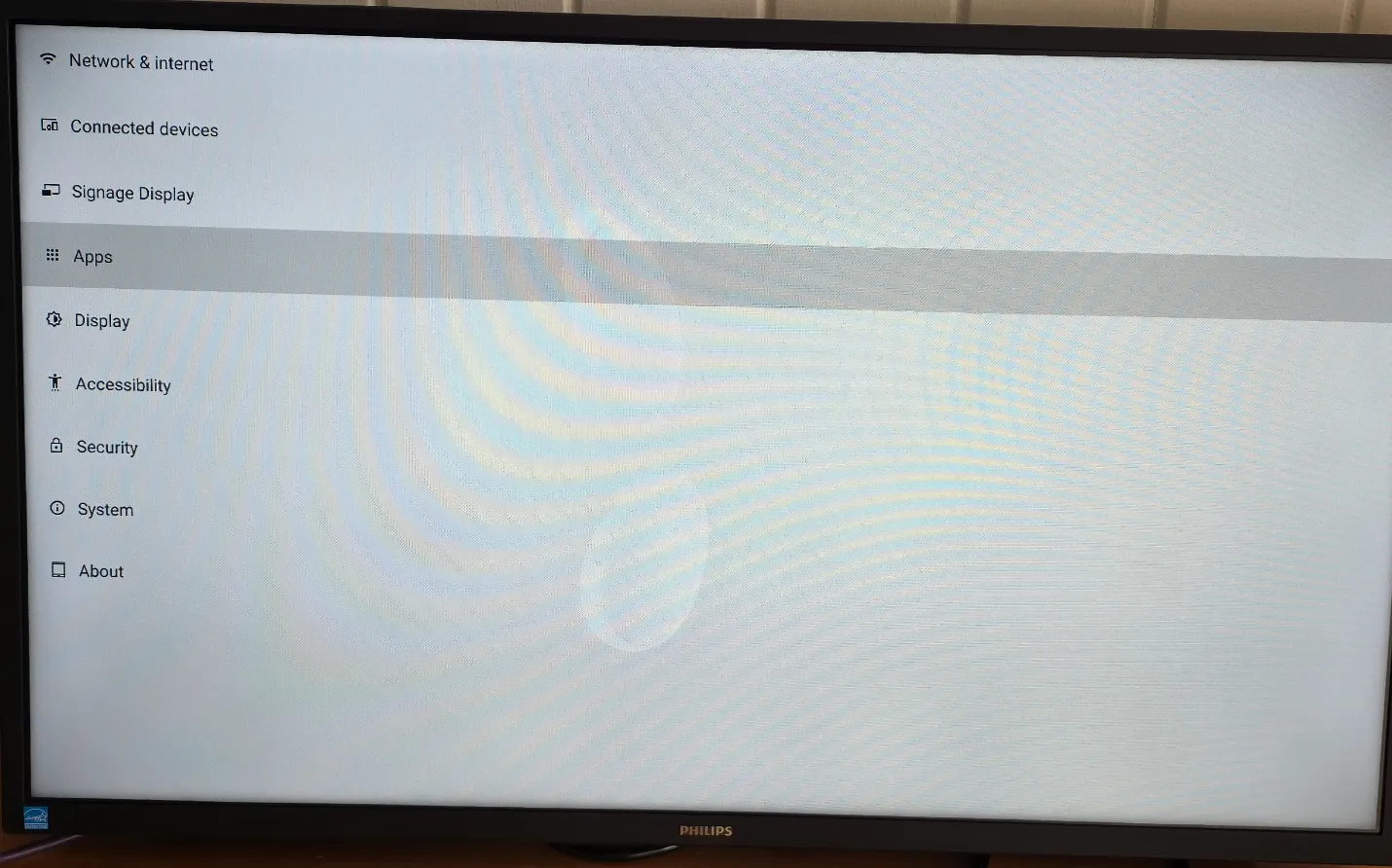
- Open Fusion Signage
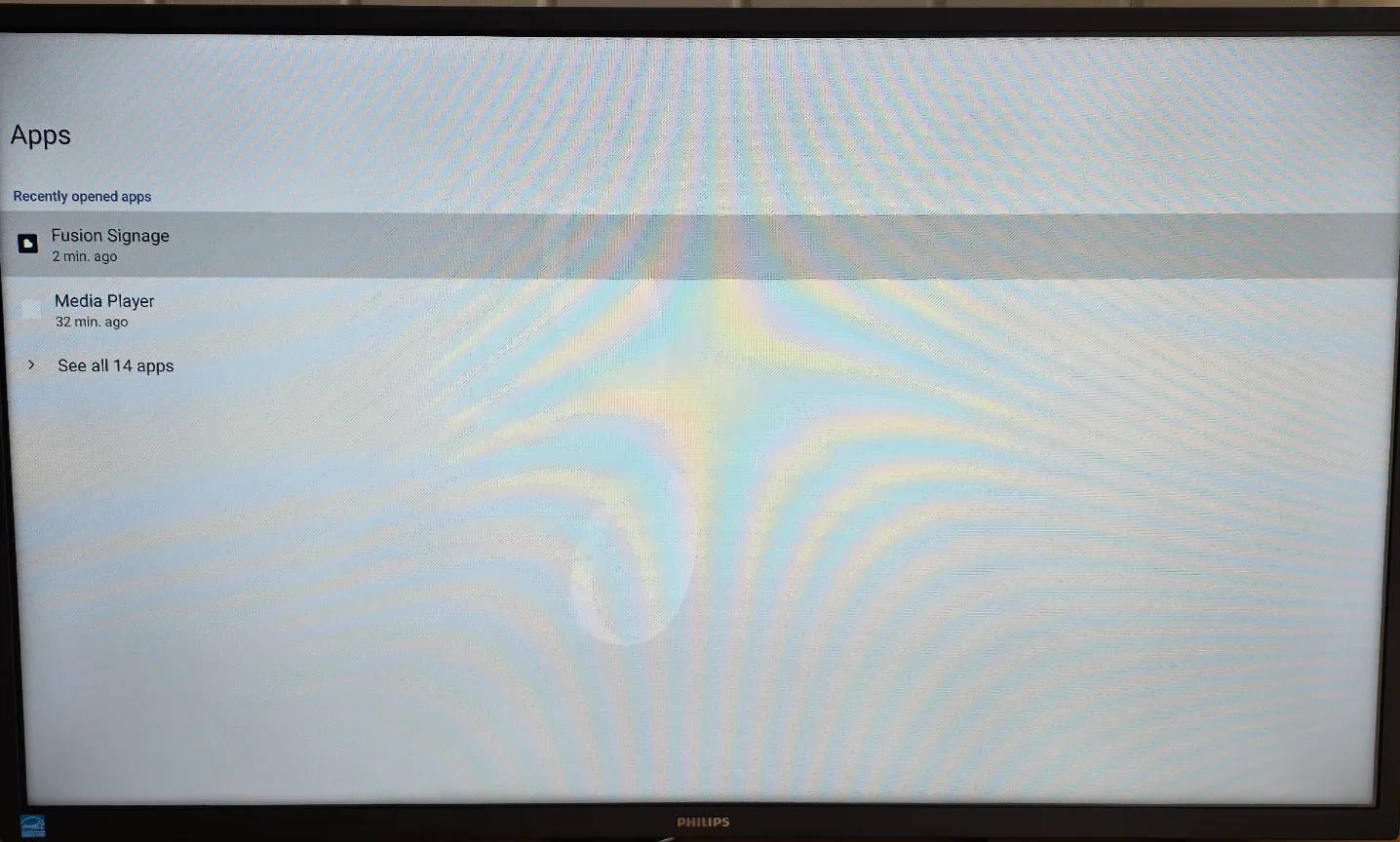
- Click Uninstall
Troubleshooting
App does not install
- Confirm the APK file is compatible with the device
- Verify the APK file is not corrupted
- Ensure sufficient free storage is available on the display
- Reboot the display and try again
No Identity Code appears
- Confirm the Fusion Signage application has fully launched
- Check that the display has internet connectivity
- Restart the application
Installation through Philips Wave fails
- Confirm the display is visible and online in Philips Wave
- Verify internet connectivity
- Retry the deployment task from the Wave portal. Philips Wave supports remote application deployment and display management for compatible Philips professional displays