Finding the identity code
What is the screen’s Fusion Signage identity code?
The identity code is a unique 5-6 digit number generated by our servers when you install the Fusion Signage app or load the web player (https://player.fusionsignage.com.au/). Each device has its own code, which cannot be shared. The code is created as soon as the device connects to the internet and remains bound to it until the app is removed or data is cleared.
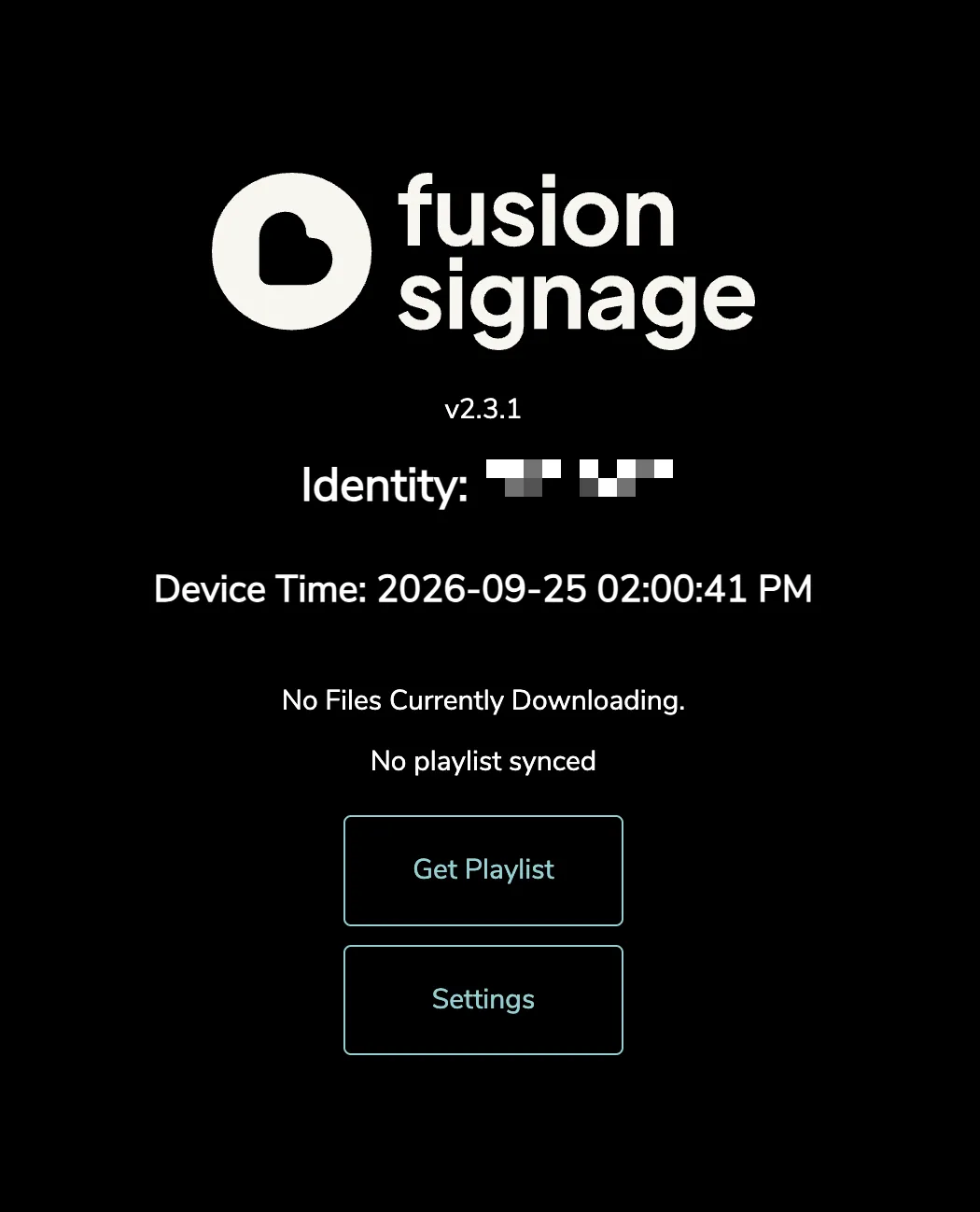
How to find the identity code:
When the app first loads, you'll see a screen with the code until the device gets assigned to an account and a playlist or schedule.
- If you see this screen but no code, or it says 'Offline', check these steps.
- If content has already been assigned, you'll need to access the Fusion Signage menu. On most devices, pressing Enter or Back on the remote, or clicking on the device with a mouse, will bring up the menu.
Tip: ensure the device’s date and time are correct, as this info appears on the identity screen.
Clearing the application storage / cache to reset the identity
Why clear the cache? If you're having issues with the app on your device, clearing the cache can quickly reset it without needing a full re-install.
Important: clearing the cache will remove all content and reset the device's identity. You’ll need to delete the old screen from your portal and add the new identity afterward to get it working again.
Since the process varies by device, please refer to our Installation Guides for specific instructions on how to clear the cache on your particular screen or media player.
Note for Philips BDL4150D panels
These panels have a separate date and time setting stored within the panel itself (not in the Android settings). To set it:
- Press Home > Advanced Options > Date & Time.
- Set Auto Sync to Yes.
Looking for something else?
We can’t wait to hear about it. Reach out to our sunshiney support and we'll be in touch in a flash.