Canva
Design in Canva. Send to Fusion Signage. Go live on your screens. Easy-peasy.
Available to all Advanced and Pro licence holders, you can now create and manage Canva content without leaving Fusion Signage.
Here’s a guide to get you going.
Connect Fusion Signage to Canva in 3 steps
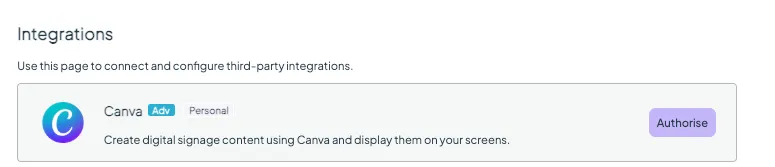
- Log into Fusion Signage. In Settings, click Integrations → Canva → Authorise. This will take you to your Canva account so you can authorise your Canva connection to Fusion Signage.
- In Canva, click Allow to grant Fusion Signage the necessary permissions.
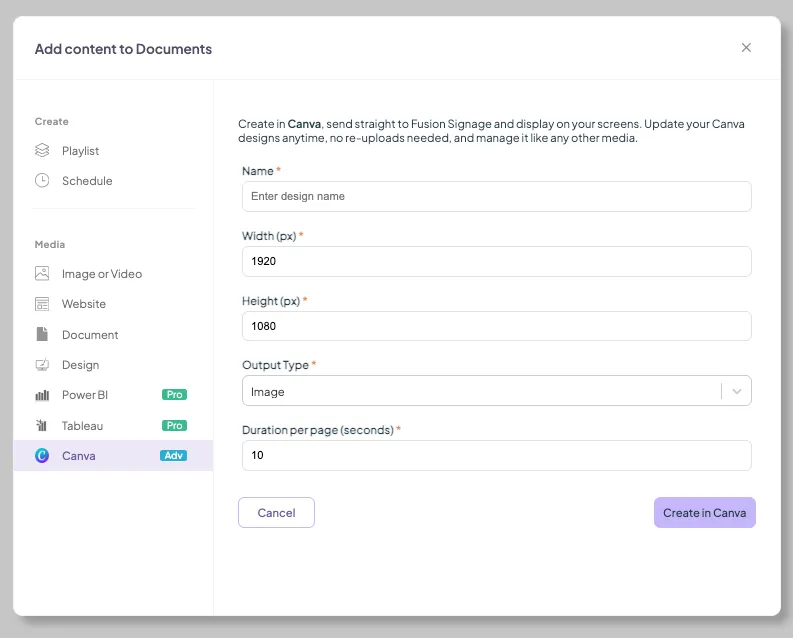
- Back in Fusion Signage in Design click on Add → Canva – you’ll be taken into Canva to design. For help using Canva, see here. When you’ve finished your design, click Return to Fusion Signage in the top right.
What happens next
- You’ll be taken back to the Manage folder where you added the item.
- Add the design to a playlist just like any other media by selecting the playlist and clicking Add. More on this here.
- You can change the output type between image and video by clicking on Edit → Configure. Remember: images require a duration.
Timing note: After hitting 'Return to Fusion Signage' your Canva designs may take a few minutes to process. You can check their status on the Manage page.
If you’d like a hand setting up the integration – get in touch, we’re happy to help!
FAQ
Do I need a Canva account to use the integration?
Yes.
You will need an active paid or free Canva account to create or edit designs using the Fusion Signage Canva integration.
Do I need Canva Pro?
No.
The integration works with any Canva account, including: Free, Pro, Business, Enterprise and Education.
Can multiple Canva accounts be connected to the same Fusion Signage account? Yes. The Canva integration is on a per user-level, which means each user will need to connect and authorise their account. This can be a shared Canva account, however each user will still need to activate the authorisation.
Why use the Canva integration instead of exporting images manually?
The integration streamlines your workflow by allowing you to create, edit and update Canva designs directly within Fusion Signage. No downloading, exporting or re-uploading required.
Can I schedule Canva content in Fusion Signage?
Yes.
Once your Canva design has been added to Fusion Signage, it can be scheduled, organised into playlists and managed just like any other media item.
Watch our speed-roller demo
Looking for something else?
We can’t wait to hear about it. Reach out to our sunshiney support and we'll be in touch in a flash.