How to deploy content to your screens
To display your images, videos, and designs on your screens, you need to organise them into a playlist.
The playlist determines the order, duration, and timing of your content playback.
A playlist can be:
- Assigned to multiple screens simultaneously, or;
- Added to a schedule to automate content changes based on the time of day or week.
Creating a playlist
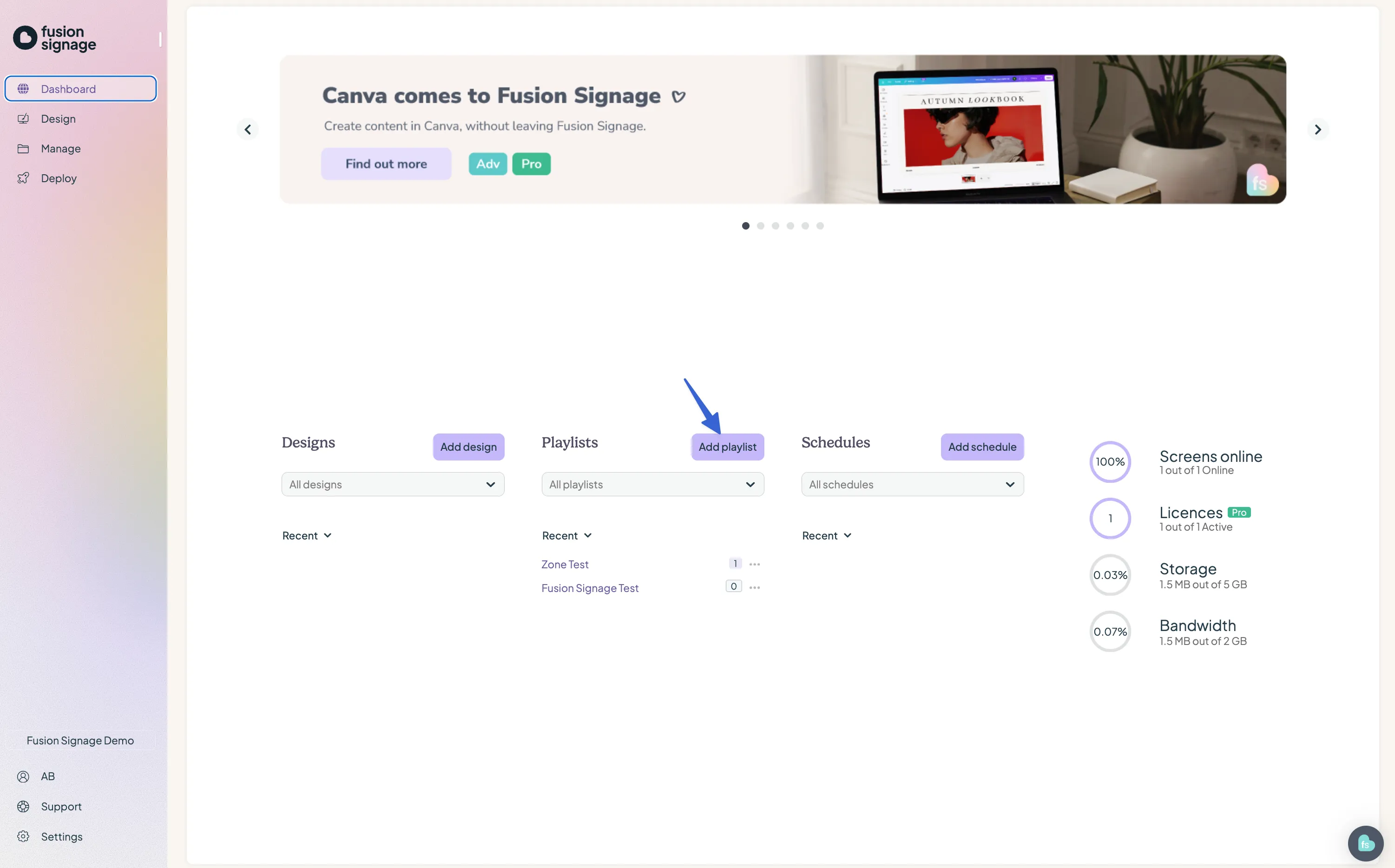
- From the Dashboard, click the Add Playlist button.
- Or, in the Manage section, click Add > Playlist.
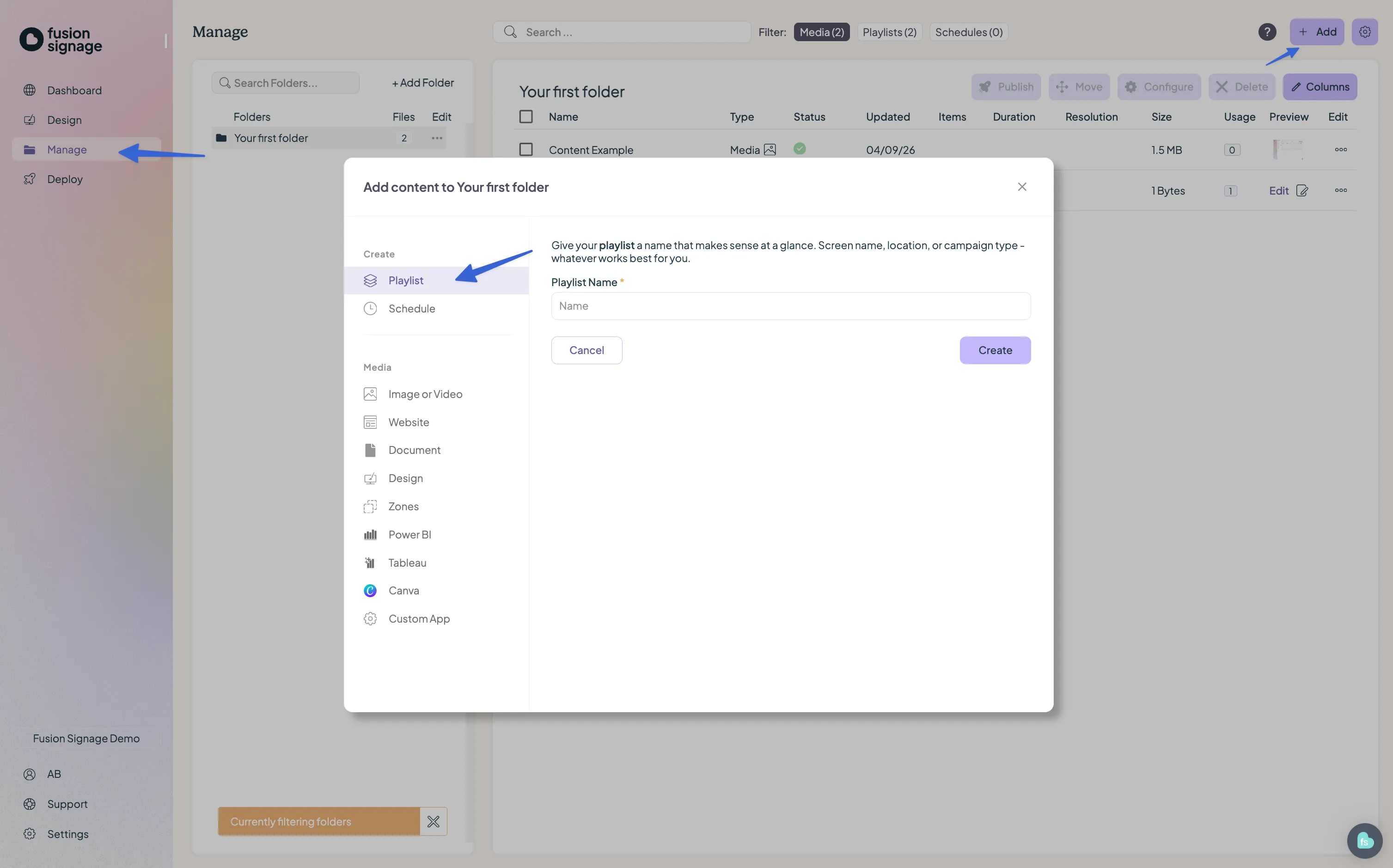
- Give your playlist a clear, descriptive name.
- Add your media content to the playlist, then click Save & Publish.
- Your playlist will be stored in the Manage section, and if desired, you can select your screen from the dropdown to send it immediately.
Deploying your playlist
- To assign a playlist to a specific screen or group of screens:
- Navigate to the Deploy section.
- Search for or locate the desired screen(s).
- Click the teal box under the Content column and select Replace.
Choose your playlist or a schedule from the options at the top.
Alternative method While editing your playlist, click Save & Publish to deploy directly to selected screens.
Confirm your screens by selecting from the dropdown or verifying the already assigned screens.
Troubleshooting: screen offline
If your screen shows as offline or you receive a warning, it needs attention before your content can update.
Follow the troubleshooting steps here to reconnect and bring your screen back online.
Looking for something else?
We can’t wait to hear about it. Reach out to our sunshiney support and we'll be in touch in a flash.