User access levels and Locations
There are two available user access levels within Fusion Signage: management and standard.
When not using locations, the main difference between these two user levels is that management can add and remove users, as well and update account details and company information. Otherwise, a standard user can access everything on the account.
With locations active:
- A management user can see everything on the account regardless of the location tier they are added to, giving them complete transparency over every location, user, screen and media.
- Standard users added to an account with locations will only be able to see locations and Tters they have been directly assigned to, but will have full access unless you have limited it using permissions groups.
Make sure when adding users you select the appropriate level of access.
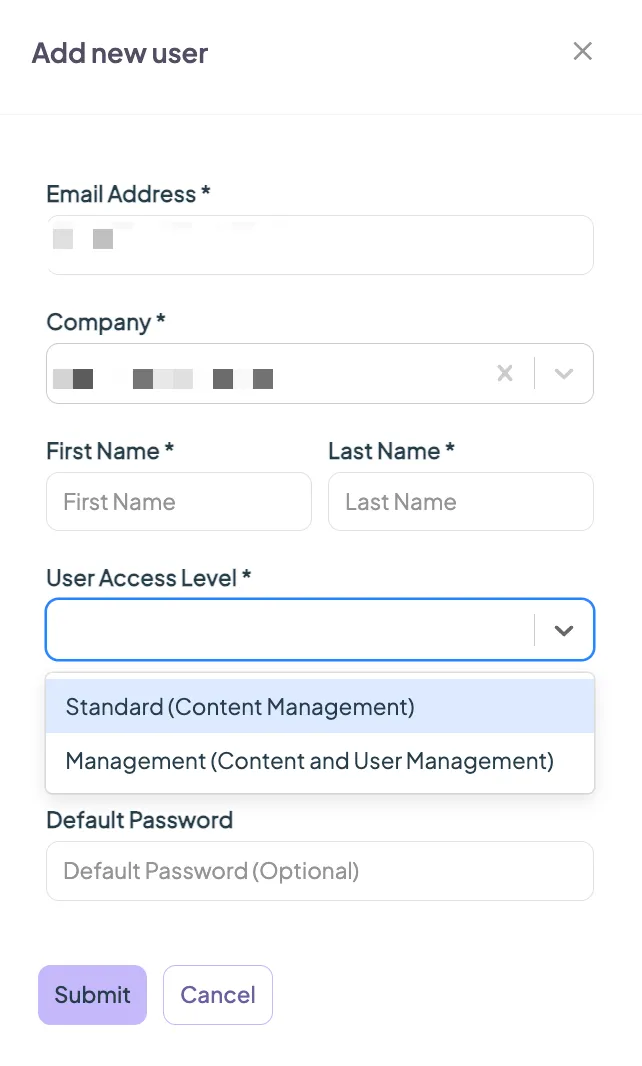
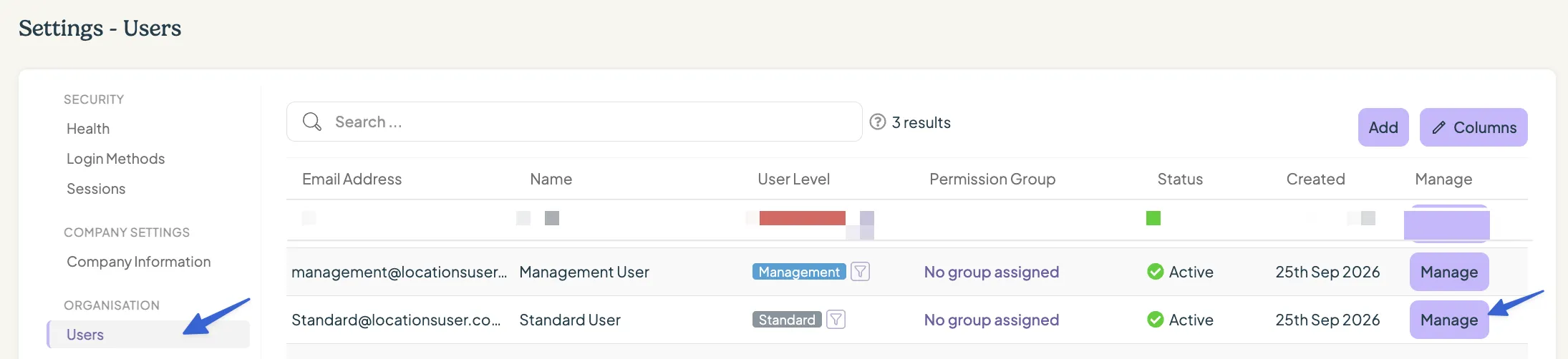
You can always change the user access level under Settings → Users -> Manage
User groups
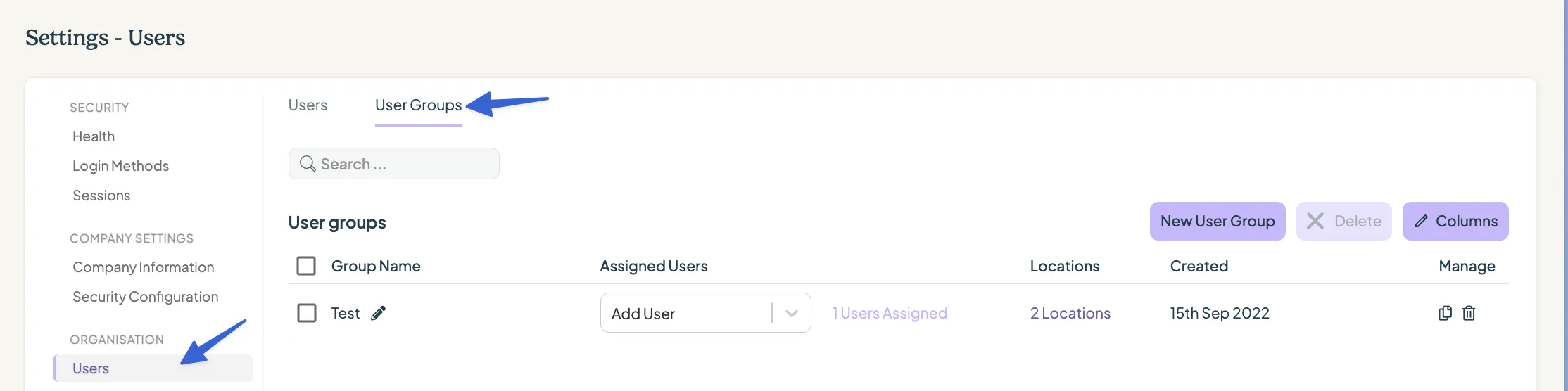
With locations added to your account, you’ll have an additional option for user groups which allows you to group users so you can quickly assign them to different locations or tiers.
Navigate to Settings → Users → User Groups tab to manage your user groups.
Permission groups
Once you have your users added, you can create permission groups to limit what they can do at each tier or location.
- Click on Add Permission Group
- Add a Name (i.e. View Only)
- Toggle the level of access you would like
- Click Save And Continue
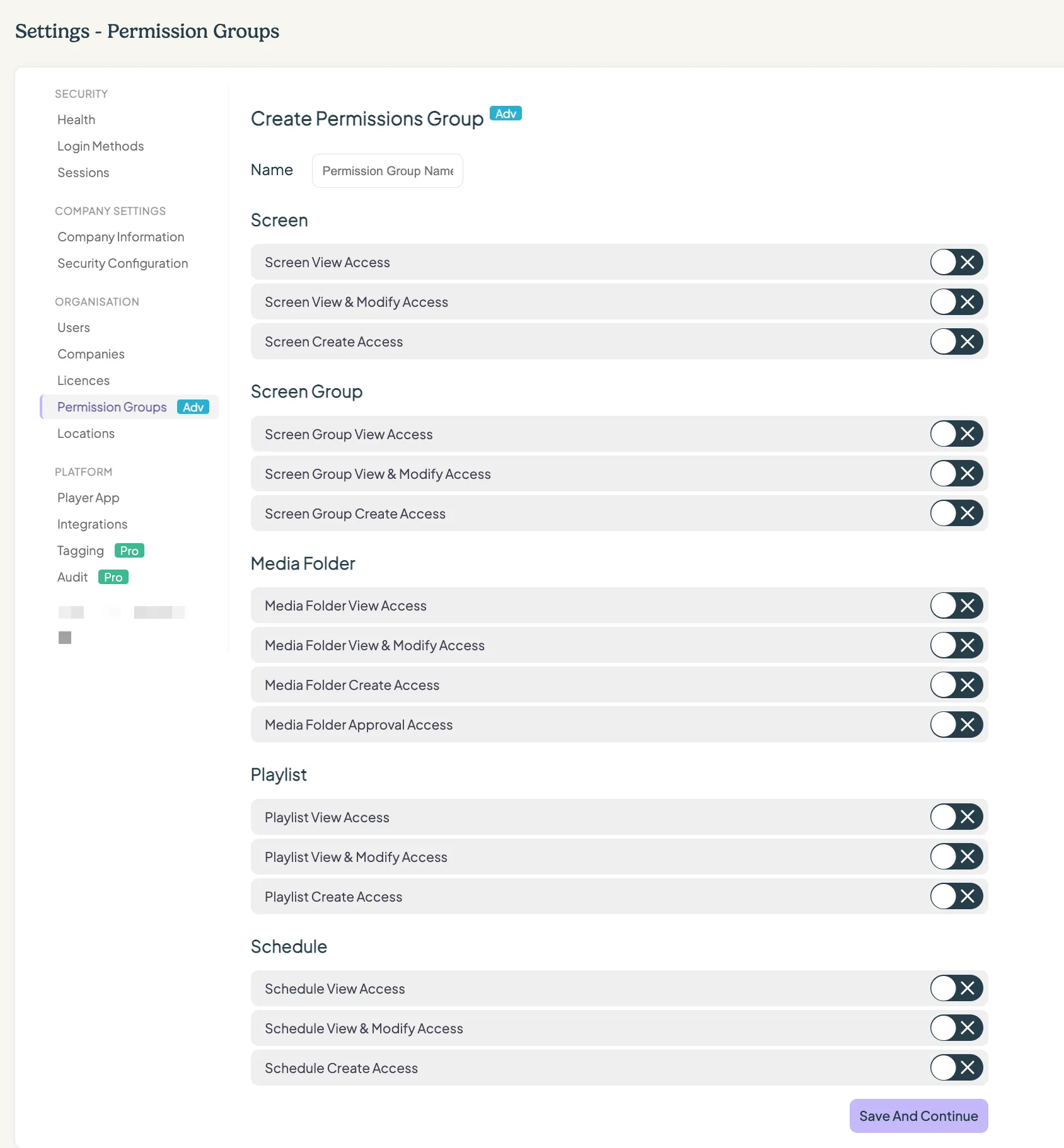
You can add any other permission groups you need. Remember that management users will have full access to everything on the account, and standard users will have full access by default unless you restrict their access using permission groups. This means you don’t need to create a 'full access' permission group and assign it to standard users.
Adding screens and users to locations
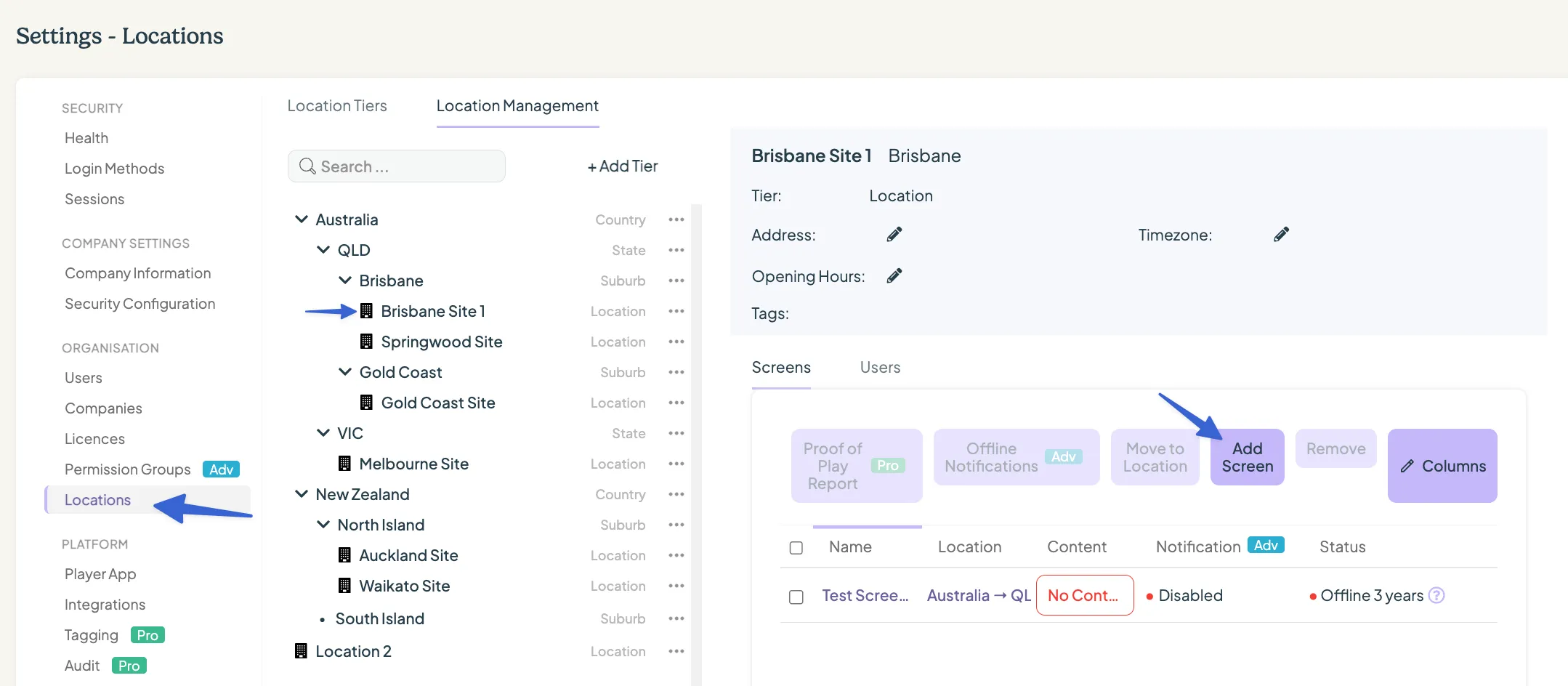
Navigate to Settings → Locations → Location Management tab.
Screens can only be added to a location not a tier.
Add screens
- Click on the location you would like to add a screen to.
- Screen tab will be selected by default.
- Click on Add Screen.
- If you have existing screens added to your account, you can select them here.
- Otherwise, click on Add New Screen and follow these steps (How to add a screenAdd A Screen To Your Account)
Your screen/s will then appear on the screens page of that location and they will be visible to users with access to this location.
Add users
- Click on the location or tier where you would like to add the user. Remember, tiers are hierarchical. For example, if you add a user at the state level QLD, they will have access to all locations within that state tier: Springwood Site, Brisbane Site 1 and Gold Coast Site.

- Click into the User tab.
- Click on Add User (Or User Group if selecting a user group)
- If you have existing users added to your account, select Existing User and choose the user/s from the drop down
- If the user has not been added to the account yet, select New User and fill in the required details to create the user account.
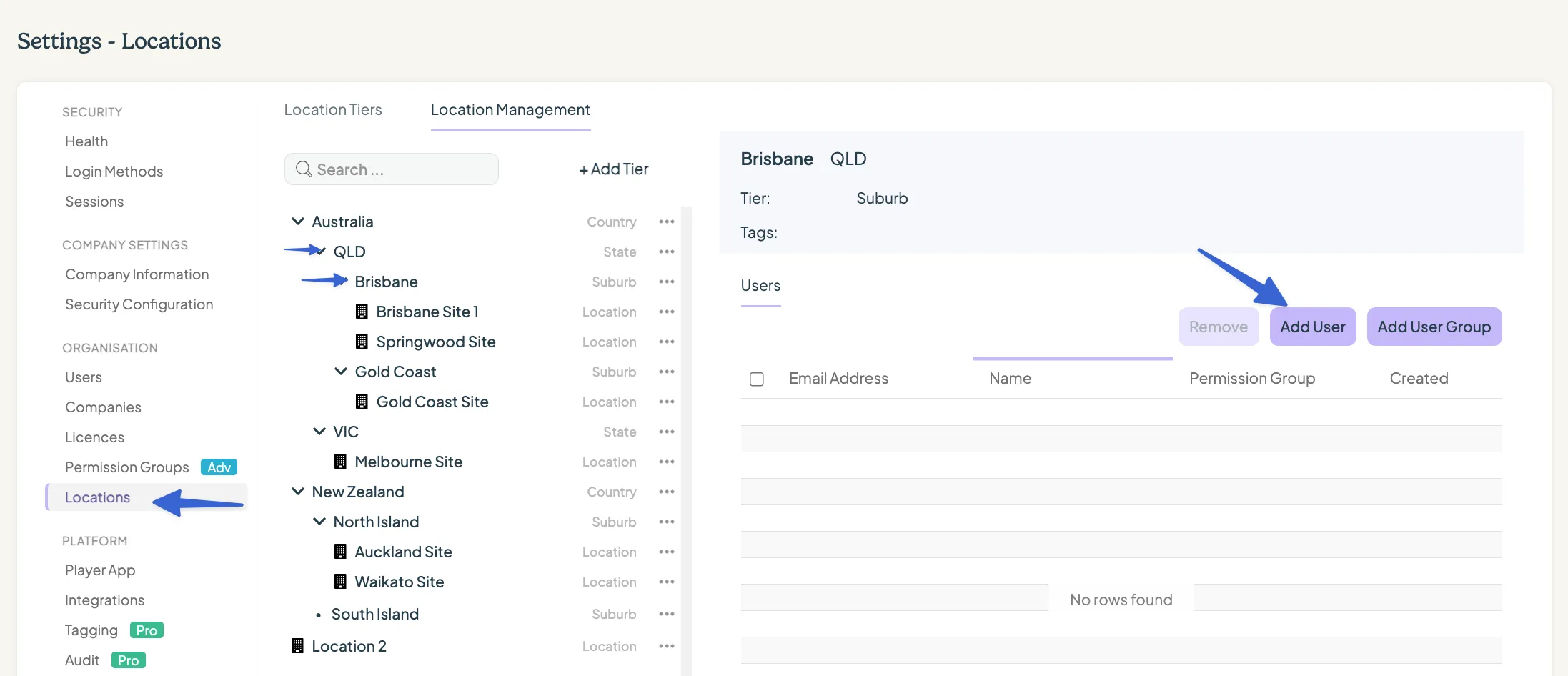
- The user or user group will then be assigned under that location or tier. Assign the relevant permission group through the drop down provided.
Looking for something else?
We can’t wait to hear about it. Reach out to our sunshiney support and we'll be in touch in a flash.