Content level scheduling
Content-level scheduling enables you to specify precisely when an individual piece of media or a playlist will be displayed on a screen. This setup is done within a playlist, eliminating the need to create multiple playlists for different scheduling times.
Important: scheduled content is added to the overall playlist – it does not replace or exclusively show during the scheduled times. Instead, it plays alongside other playlist items.
How to schedule content
- Action menu Click the calendar icon under the Actions column for any media item in a playlist.
- Add schedule Select Add Schedule from the menu.
- Schedule options Configure your scheduling preferences (days, start/end times, dates).
| OptionDescription |
|---|---|
Active Days | Toggle on/off the days of the week when you want this content to appear. When the box is blue with a checkmark, the content will be displayed on those days. |
Start Time & End Time | Select the times of day during which the content should appear. For example, set start time to 08:00 and end time to 22:00 for content to display between 8 AM and 10 PM. You can also tick the checkbox above End Time to display the content until the end of the day. |
Start Date & End Date | Specify a date range for the content to be active. Set the start date and end date accordingly. Check Forever to keep the content in the playlist indefinitely until you remove it. |
Add Schedule | Add multiple schedules to fine-tune when your content appears throughout different times and dates. |
Apply and Exit / Apply / Cancel | When satisfied with your schedule:
|
Apply to Selected | To apply a schedule to multiple media items:
Note: This will override existing schedules on those media items. |
Remove Schedule | To delete a schedule, click the X in the top right corner of the scheduled item. |
- Schedule active The icon will turn orange when the schedule is active.

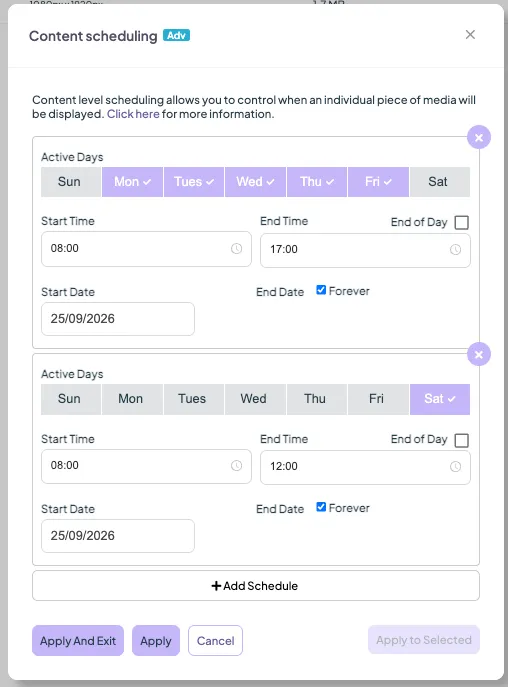
Example scenario
- Monday to Friday: 8:00 AM – 5:00 PM
- Saturday: 8:00 AM – 12:00 PM Starting from September 25, 2026 and continues indefinitely.
Interacting with schedules
The schedules section (found on the left menu under playlist) manages the overall playlist at specific times. Fusion Signage respects content-level scheduling within playlists, even when switching between different playlists.
How it works You can set up a schedule to change the active playlist – for example, switching to a playlist called 'Daily Specials' at a designated time. The content-level scheduling within each playlist will handle which specific items are displayed during that timeframe.
Example setup Create a schedule that switches to the Daily Specials playlist at a certain time, and within each playlist, individual media items are scheduled according to their own timelines.
Looking for something else?
We can’t wait to hear about it. Reach out to our sunshiney support and we'll be in touch in a flash.