Organise your folders
6 min
Organise your folders
Find the folders panel on the left side.
- Here, you can search for or create new folders to organise your content.
- Switch to the Media tab at the top to view only media files. Playlists and schedules will be hidden here.
- When you select a folder, its contents are displayed on the right.
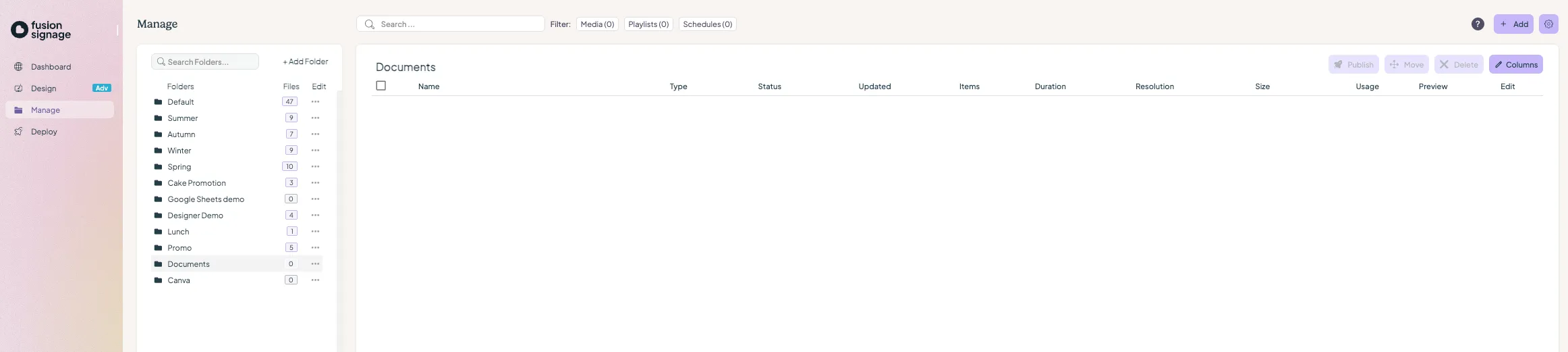
Creating folders
- Click Add Folder.
- Name your folder based on the campaign or content type (e.g. Store, Food, Specials).
- Name folders as anything that makes sense to your business – a folder can contain media, playlists, and schedules, so organise as you like.
Managing folders
- Use the 3-dot menu next to each folder to rename, create a sub-folder, or delete.
Adding media files
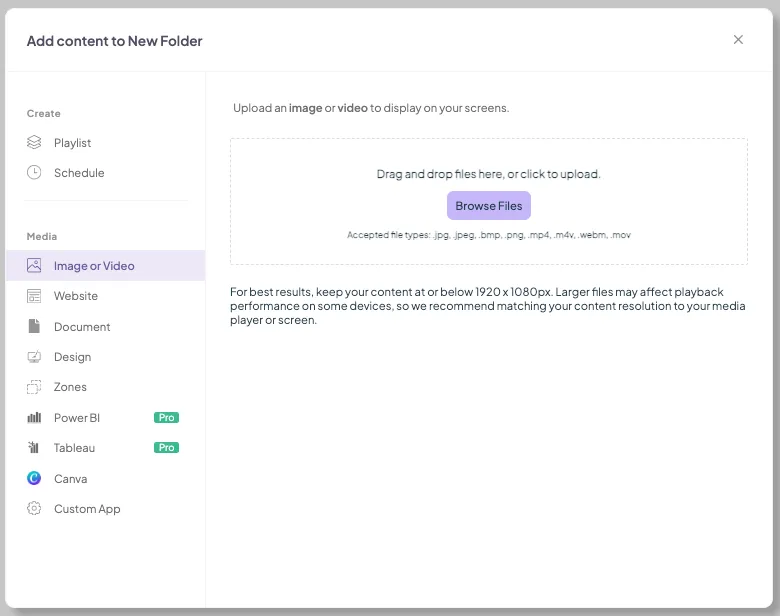
- Select the folder you want to add media to.
- Click Add > choose the media type (image, video, website, design, or zone).
- Upload files by clicking Browse Files or drag and drop files directly into the folder.
Inside a folder – column overview
Once inside a folder, you'll see items listed in columns with four main tabs at the top.

- Publish: Quick PublishQuick Publish makes it easy to add content directly to a playlist and publish your changes - without needing to manually navigate to and edit the playlist.
- Move: when an item is selected, this becomes active, allowing you to move it to another folder or location.
- Delete: same as moving, but for deleting items.
- Columns: toggle which columns are visible (keep only what you need).
Handy hint: you can select individual items using the square checkbox on the left, or select all items in the folder with the top checkbox. Reminder: deleting content from your media library removes it from all playlists it's assigned to.
Looking for something else?
We can’t wait to hear about it. Reach out to our sunshiney support and we'll be in touch in a flash.