Grouping
6 min
Screen Grouping lets you manage multiple screens as one. Instead of assigning content to individual screens, you can add them to a group then update the entire group in one action. Handy if you have a lot of screens with the same content on it.
Who can use Screen Grouping
Screen Grouping is available with Advanced and Pro licences.
How to create a Screen Group
- Navigate to Deploy from the left-hand menu
- Select the Grouped tab
- Click Add new group and give it a name
- Cheer 🎉
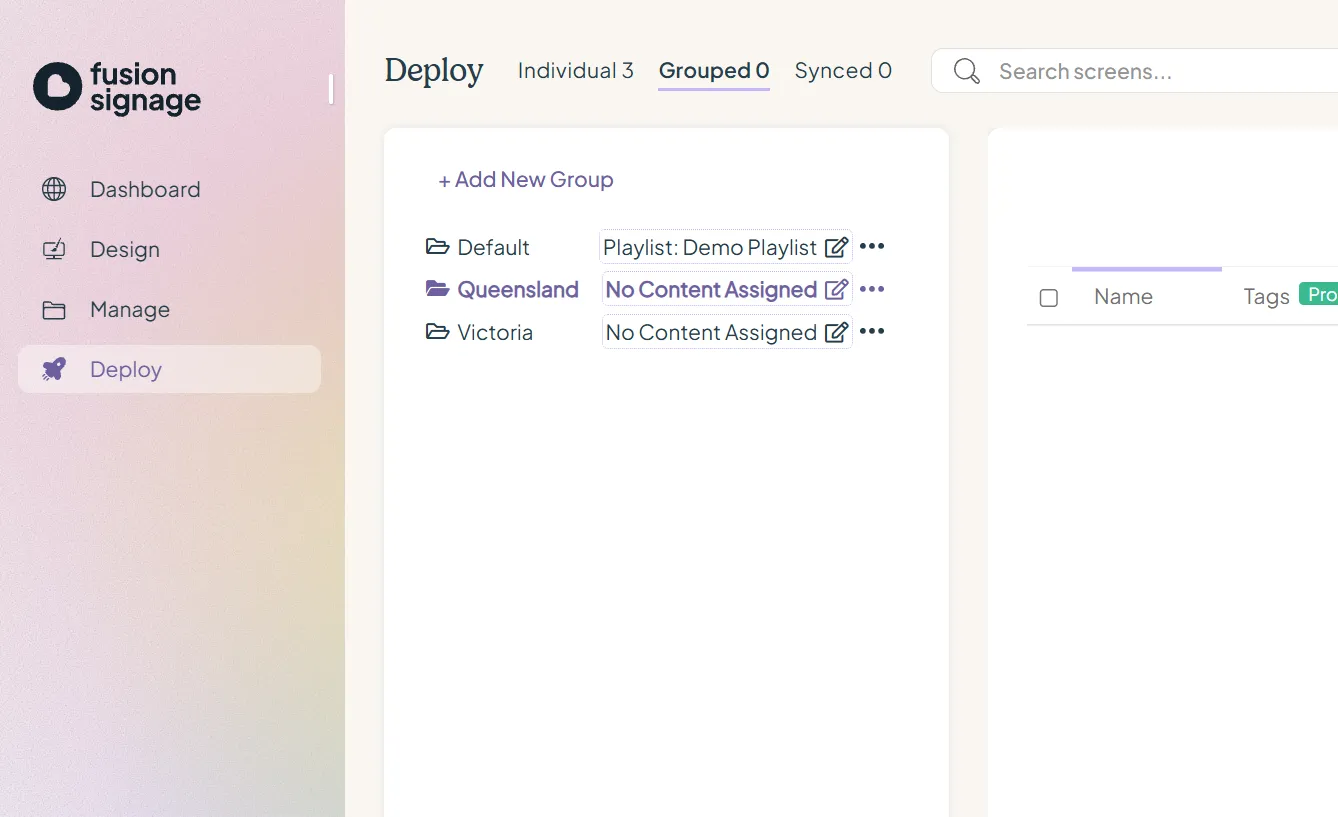
How to publish and update content to a Screen Group
Once your Screen Group is set up, you can publish content to all screens in the group at once.
From the Deploy section
- Click on Screen Groups
- Find the Group you want to update, and click the content box next to the group name and select Replace
- Select either a Playlist or Schedule (or Interactive if you are using it)
- Hit Submit
From the Playlist publish
- Navigate to Manage and open the playlist you'd like to publish
- Click Save and Publish
- Select your Screen Group from the screen assignment dropdown
- Review your selection and click Save and Publish to confirm
Your screens will update with the new content shortly.
Screen Grouping vs Synchronisation
Screen Grouping and Synchronisation are two different features.
- Screen Grouping lets you manage and update content across multiple screens together.
- Synchronisation keeps content playing in sync across multiple screens.
Both features are available with Advanced and Pro licences.
For more information, see Synchronisation.
Looking for something else?
We can’t wait to hear about it. Reach out to our sunshiney support and we'll be in touch in a flash.