How to set up an interactive website
Fusion Signage supports two types of interactivity:
- Basic Interactive Mode (Website Interactive) This mode allows a website to be displayed, enabling users to directly interact with the screen at any time.
- Interactive with Idle Timeout (Website Interactive v2) Similar to the basic mode, this option also allows website interaction. However, if the screen is inactive for a set period, it will automatically revert to a default playlist or schedule. Once touched again, it returns to the interactive content.
This guide outlines how to get started and what’s required to make it work effectively.
Requirements
- Advanced tier or greater licences (you’ll need access to the Designer, an advanced tier feature).
- A screen with touch capabilities.
- The capability to create and maintain a HTML-based website
- Additional code requirements if using Website Interactive v2
Step 1: Enable template for your account
Before you can begin, the interactive template must be enabled on your account by the Fusion Signage support team. Please email [email protected] to request activation.
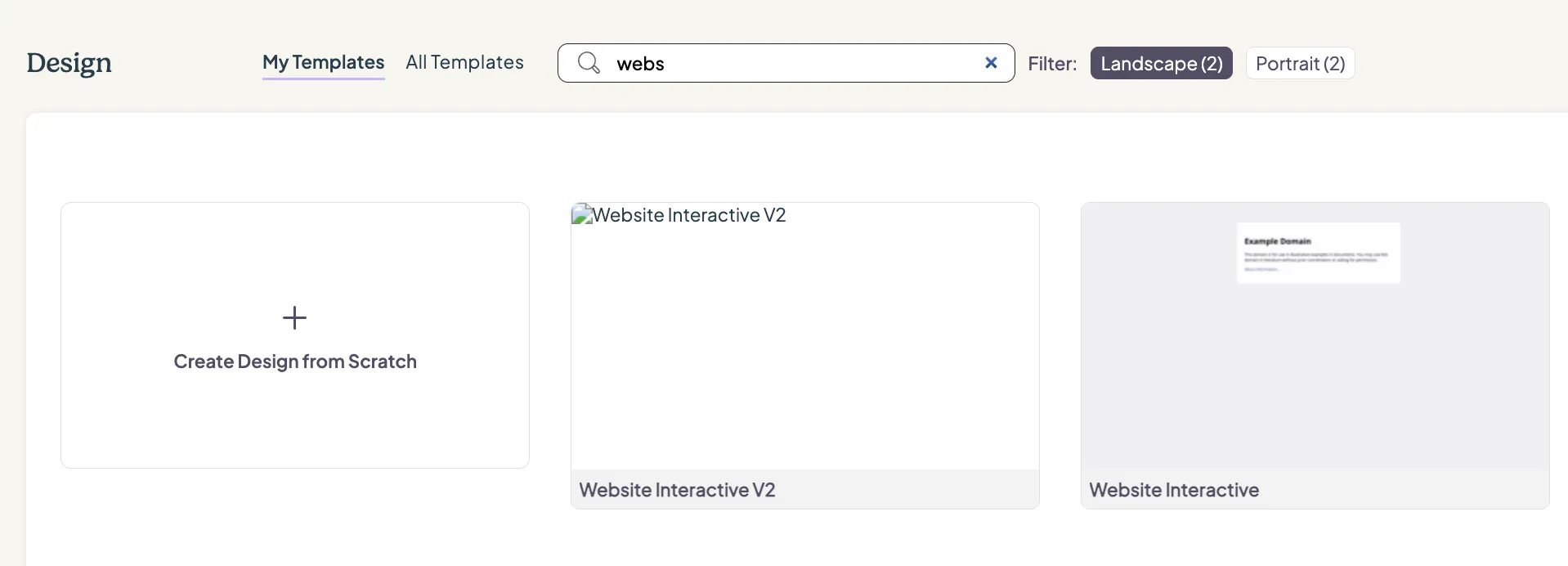
Once enabled, a new design template called "Website Interactive" and/or “Website Interactive v2” will become available in the Design section of your Fusion Signage dashboard.
Step 2: Create Your Interactive Website
You’ll need to create a HTML-based website containing all the interactive elements you require. This might include:
- Multiple slides or pages
- Left and right navigation buttons
- Menus, tabs, or other interactive UI components
Note: This website acts as the interface your users will interact with via the kiosk or screen.
To ensure Website Interactive v2 functions properly, additional code is required. For more details, click here.
Step 3: Embed Your Website
After creating your HTML website:
- Open the Website Interactive template in your Fusion Signage account.
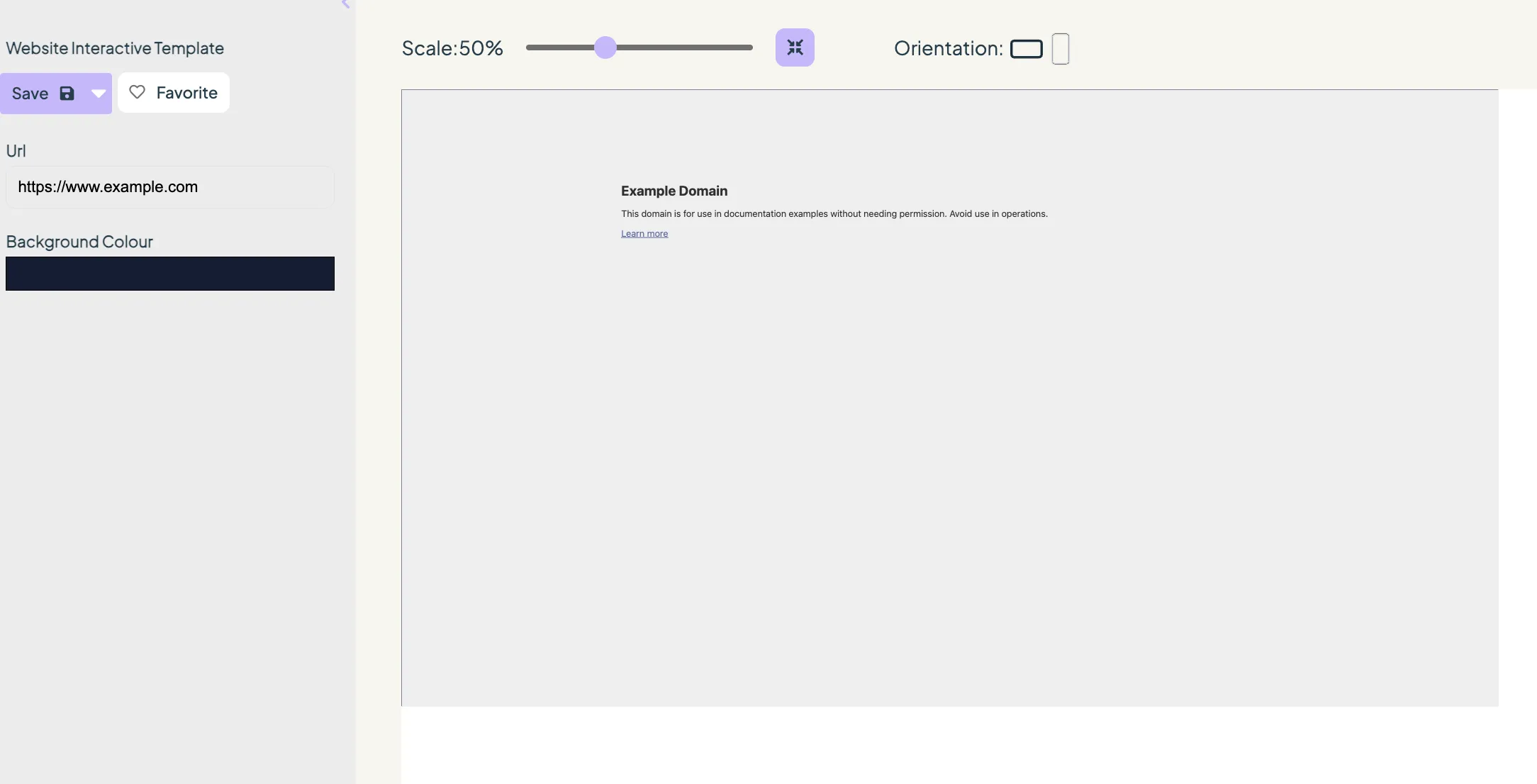
- Embed the URL of your website into the template, and set the orientation, scale and background colour.
- Deploy the design to your interactive screen or kiosk like you would any other piece of content.
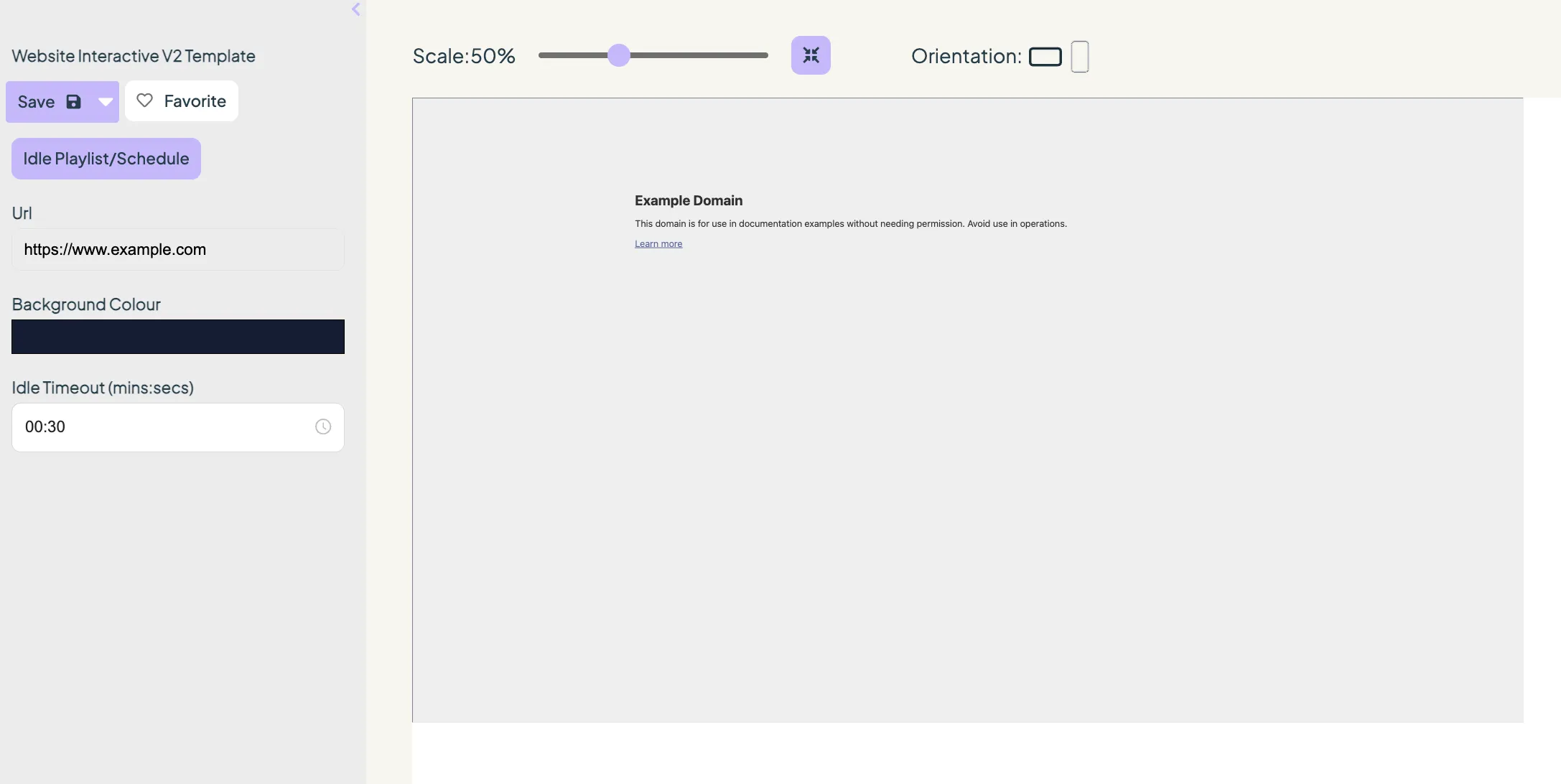
If using the Website Interactive v2 Design, be sure to set the Idle Playlist/Schedule (What the screen will revert to when inactive), as well as the Idle Timeout (how long until the screen reverts to the set playlist/schedule).
Step 4: Lock Down Your Device/Screen
Depending on what hardware you’re using, most versions of the Fusion Signage software have the ability to enable a feature called Enable Secure Menu Access. This makes it so that it requires you the click/touch the screen ten times in rapid succession to open the identity code page, which you'd then be able to access the Fusion Signage settings.
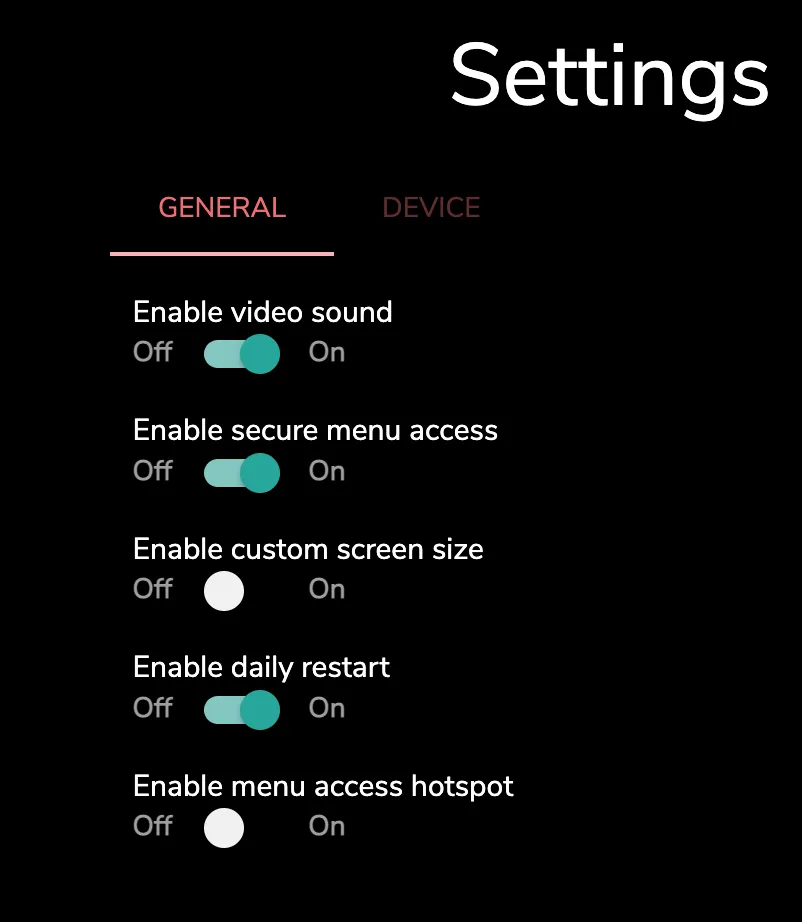
This prevents anyone from accidentally accessing settings or closing the Fusion Signage application.
Important Notes
Please ensure the following conditions are met for interactivity to function properly:
Customer-Managed Development
- The creation and maintenance of the interactive website is your responsibility.
- Fusion Signage does not provide support for website development or troubleshooting.
Website Accessibility
Your website must be:
- Publicly accessible via the internet (and your screens must be online), OR
- Hosted on a private network (LAN/intranet) that your screens are also connected to.
- Cannot be behind a login page.
Iframe Compatibility
- The website must allow iframe embedding.
- Sites with security policies like SAMEORIGIN will not work.
- You can test your website to see if it’s Iframe compatible using: https://iframetester.com/
Note: When an interactive template is used, it is the only thing on the player. It can not a part of a playlist. Please see below for a video on how it is deployed to a screen.
Interactive template deploy
Looking for something else?
We can’t wait to hear about it. Reach out to our sunshiney support and we'll be in touch in a flash.