Power Scheduling
Power Scheduling lets you automatically turn your screens on and off at specific times, straight from your Fusion Signage dashboard. Think of it like setting your screens' morning alarm and tucking them in at night. The best part? Once you've set your schedule, there's nothing else you need to do! Doors closed, sun down, screens off. Then, when it's time to open up again, your screens are ready to get back to work. It's a simple way to optimise energy use, reduce unnecessary screen time and help extend the life of your hardware. After all, even your screens deserve a little downtime!
How do Power Schedules work?
Power Schedules allow you to set specific times for your screens to turn on and off automatically. Depending on your device, Fusion Signage uses one of two methods to control your screen:
HDMI-CEC (External Media Players)
HDMI-CEC allows devices connected via HDMI to communicate with each other. When using a compatible external media player, Fusion Signage sends a command through the player to turn your display on or off. For this to work, your display must support HDMI-CEC and have it enabled in its settings.
Backlight Control (Built-in Players)
For supported displays running Fusion Signage directly, Power Schedules work by switching the screen's backlight on and off. This means the screen appears off, but the device itself remains powered on and can continue communicating with Fusion Signage.
A couple of things to keep in mind:
- Power Schedules don't completely shut down your device or disconnect it from power. They control whether the display is showing content.
- Your screen must be online and connected to Fusion Signage for the initial set up to work. After that, it should work offline.
- Changes to your Power Schedule can take approximately 5 minutes to apply.
Which devices support Power Schedules?
Power Schedules are supported on the following devices, with the method of control depending on the manufacturer.
We are working on adding more devices in the future.
Please note: If the Power Scheduling feature is not appearing because the screen's app does not support timers, you can contact your reseller to have the media player's software updated to the latest version.
Device | Power Control Method | Min app version |
|---|---|---|
BrightSign | HDMI-CEC | 2.9.0 |
Amazon Signage Stick | HDMI-CEC | 2.18.0 |
Fusion Android Player | HDMI-CEC | 2.18.0 |
Samsung (Tizen) | Backlight Control | 2.11.0 |
Philips | Backlight Control | 2.18.0 |
Hisense | Backlight Control | 2.18.0 |
LG (WebOS) | Backlight Control | 2.8.0 |
Please note: that compatibility can vary depending on your device model, firmware and configuration.
Setting up a Power Schedule
- Log in to your Fusion Signage dashboard.
- Navigate to Screens in the Deploy section and select the screen you'd like to manage.
- Open the screen's settings and under Screen Control on the left, locate Power Schedules.
- Click Add Power schedule
- Select the Power On and Power Off time, then choose the days of the week
- Click Add power schedule to set up multiple schedules if you need different times on different days
- Other options:
- Click disable to turn off a power schedule
- Click the trach bin icon next to a power schedule to remove it
- Press Save schedules at the bottom
Once saved, Fusion Signage will use your schedule to control when the screen displays content.
If your device is currently offline, it will download the schedule when it comes back online.
Tip: Make sure your screen's time zone is correct so your schedule runs at the expected local time. Remember, changes can take around 5 minutes to apply, and your screen needs to be online to receive the change!
Speedy demo: Power Scheduling in 53 seconds
Full demo: all about Screen Control
If you're using an external media player, there may be some additional setup required. See below!
Setting up HDMI-CEC for external media players
If you're using a BrightSign player, Amazon Signage Stick or another supported external media player, you'll need to make sure HDMI-CEC is enabled on your display. HDMI-CEC is a feature that allows connected devices to send power commands through an HDMI cable. While many modern displays support HDMI-CEC, it isn't always enabled by default.
Step 1: Check your HDMI connection
- Make sure your media player is connected directly to your display using a compatible HDMI cable.
- If you're using an HDMI splitter, adapter, extender or switch, please note that some of these accessories may not support HDMI-CEC commands.
- We recommend testing with a direct HDMI connection wherever possible.
Step 2: Enable HDMI-CEC on your display
- HDMI-CEC can have different names depending on your display manufacturer.
- The exact menu location will depend on your display model and firmware.
Important: Some displays have additional power-saving or standby settings that prevent HDMI-CEC from waking the screen. If your display turns off successfully but won't turn back on, check these settings in your manufacturer's documentation. Something to note is that if the screen goes black with an image like below, the schedule has worked but the HDMI CEC command might've failed.

Step 3: Test your Power Schedule
- Confirm your media player is connected, online and running Fusion Signage.
- Create a short test schedule with an upcoming off and on time.
- Allow at least 5 minutes for your schedule to update.
- Check whether the display responds at the scheduled times.
- If the screen doesn't respond, follow the troubleshooting steps below.
If your Power Schedule isn't working as expected, there are a few things worth checking.
My screen isn't turning off at the scheduled time
- Check the time and date on your device. All power schedules rely on the local device time to work.
- Make sure you have saved the schedule for that screen
- If you've recently updated your schedule, allow approximately 5 minutes for the changes to take effect.
- Ensure your screen supports HDMI-CEC if using an external player
For external media players (HDMI-CEC):
- Confirm HDMI-CEC is enabled on your display.
- Check that your HDMI cable supports HDMI-CEC.
- If you're using an HDMI splitter, switch or extender, try connecting the player directly to the display.
- Check that the display supports receiving power commands over HDMI.
- Restart the display after enabling HDMI-CEC, then test again.
For built-in players (Backlight Control):
- Confirm your device is running a compatible version of Fusion Signage.
- Check that the screen is online and communicating with Fusion Signage.
- Make sure the correct Power Schedule is assigned and the time zone is accurate.
- Check whether any manufacturer-specific power settings are interfering with the schedule.
- For Philips specifically, make sure that SICP is enabled and on port 5000. We do not support other ports.
My screen turns off but doesn't turn back on
- If you're using an external media player, this may also be related to the display's HDMI-CEC or standby settings.
- Some displays enter a deep sleep or energy-saving mode that prevents them from receiving commands from connected devices.
- We recommend:
- Checking that HDMI-CEC is enabled.
- Looking for settings such as Auto Power On, Quick Start, Network Standby or similar.
- Disabling deep sleep settings that prevent external devices from waking the display, where appropriate.
- Testing with a direct HDMI connection.
- For built-in players, confirm the screen is still online and that its firmware and Fusion Signage app are up to date.
My screen is showing a black screen instead of my content
If your screen is scheduled to be off, Fusion Signage will display a black screen if someone manually turns it back on. This is expected behaviour! Your Power Schedule is managed through the Fusion Signage dashboard, so manually turning the display on won't override an active off period. If you'd like content to start playing earlier than scheduled, simply update your Power Schedule in Fusion Signage.
Please note: Changes can take approximately 5 minutes to apply, so your content may not appear immediately after updating the schedule.
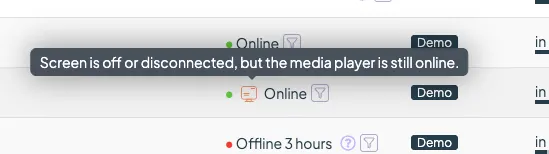
My screen is showing as online even though it's turned off
This is normal! Power Schedules control the display rather than completely shutting down the device.
- For built-in players, the backlight is switched off while the device continues running.
- For external media players, the display receives a power command while the media player remains operational. This means your screen or player may continue to appear online in Fusion Signage even when the display is off.
There is an indicator icon next to the screen to show when the screen is turned off
My screen turns on or off unexpectedly
If your screen isn't following the times you've configured, check the following:
- Confirm the correct time zone is selected.
- Review your Power Schedule for overlapping or unexpected times.
- Check whether your display has its own built-in power timers enabled.
- For HDMI-CEC setups, check whether another connected device is sending power commands.
- Confirm your screen has a stable internet connection.
We recommend avoiding conflicting power schedules between Fusion Signage and your display's built-in settings.
My screen was offline during a scheduled power change
Power Scheduling requires your screen to be online and communicating with Fusion Signage. If your screen loses its internet connection, scheduled power changes may not take place as expected. We recommend checking your device's internet connection and confirming it appears online in your Fusion Signage dashboard before testing your schedule again.
Still need a hand?
If your Power Schedule isn't behaving as expected, our Support Team is happy to help! When reaching out, please include:
- Your display manufacturer and model.
- Whether you're using a built-in player or an external media player.
- Your media player model, if applicable.
- The times you've configured and what is happening instead.
- Whether your screen is showing as online in Fusion Signage.
- Any troubleshooting steps you've already tried.
The more information you can provide, the quicker we can help get things back on track!
Looking for something else?
We can’t wait to hear about it. Reach out to our sunshiney support and we'll be in touch in a flash.
If reac