Managing users
Adding a New User
Any management user can add a new user to the system.
Steps:
- Navigate to Settings → Users.
- Click Add.
- Fill in the required information in the pop-up form.
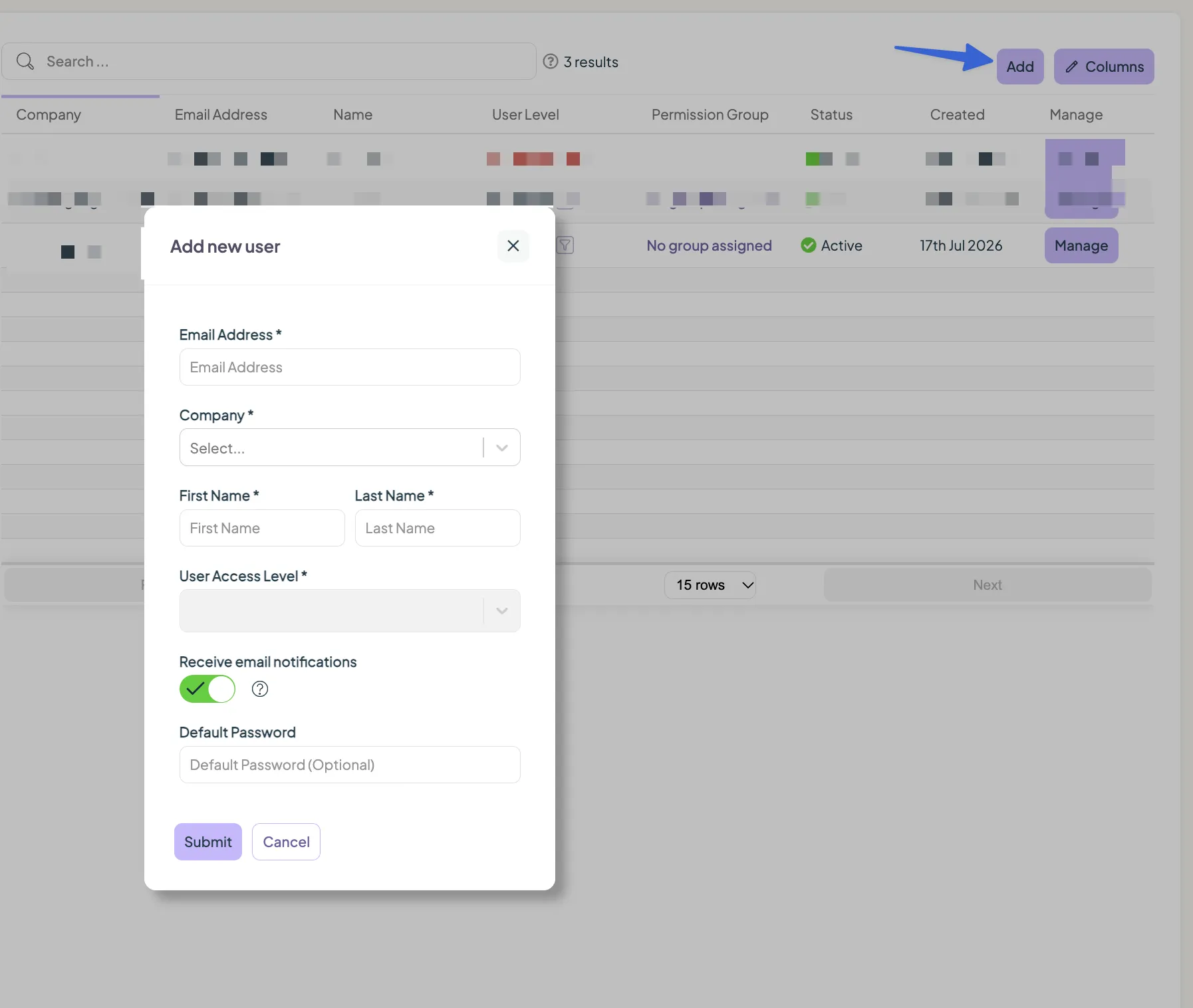
Once submitted, the new user will automatically receive a welcome email to the email address provided. This email includes instructions for setting up their password.
Note: If the email does not appear in your inbox, check your spam or junk folder.
Deactivating a User
Users with Management permissions can deactivate users when they need to remove access without permanently deleting the account.
Steps:
- Navigate to Settings.
- Select Users.
- Locate the user you wish to update.
- Click Manage next to the user's name.
- Click Deactivate.
- Confirm the action when prompted.
What happens when a user is deactivated?
- The user will no longer be able to access the system.
- Emails and notifications will no longer be sent to the user.
- The user record remains in the account.
- The action is reversible and the user can be reactivated at a later time.
Reactivating a user
If a user has been deactivated and requires access again:
- Navigate to Settings > Users.
- Locate the inactive user.
- Click Manage next to their name.
- Click Reactivate.
Once reactivated, the user will regain access and resume receiving system emails and notifications.
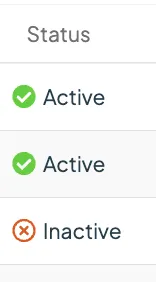
Note: The Status column on the Users page in settings displays whether a user is Active or Inactive.
Deleting a User
Users with Management permissions can permanently remove a user from the account.
Steps:
- Navigate to Settings.
- Select Users.
- Locate the user you wish to remove.
- Click Manage next to the user's name.
- Click Delete.
- Confirm the deletion when prompted.
Deleting a user permanently removes them from the account. If you may need to restore access in the future, consider deactivating the user instead.
Looking for something else?
We can’t wait to hear about it. Reach out to our sunshiney support and we'll be in touch in a flash.