Uploading PowerPoint and PDF files
Want your PPTX slides or PDFs to play on your screens? You can now publish existing presentations, menus, announcements, and promotional content across your digital signage network directly as a PPTX or PDF.
Simply upload your PDF or PPTX file, set the playback duration for each slide, add it to a playlist, and publish remotely to your screens. Easy-peasy.
Here’s an easy guide to get you up and running.
Watch our demo
It’s a simple process, but let’s walk through it together. 💙
What’s supported
- PowerPoint .pptx and PDF. Old-style .ppt files (PPT) are not supported - please save as .pptx.
- .pptx files are flattened during processing (animations and editable elements become static pages).
- Apple Keynote isn’t supported - export to .pptx or PDF first.
Preparing your document
- It’s important to create your PDF or PowerPoint at the same resolution as the screen you’ll publish to.
- In PowerPoint navigate to Design -> Slide Size -> Custom Slide Size
- Set Width: 1920px (this will convert to 50.8cm)
- Set Height: 1080px (this will convert to 28.575 cm)
- In Keynote in the Document Sidebar click on the pop-up menu below Slide Size and choose Custom Slide Size
- Note Keynote uses a DPI of 72, and we upload at a DPI of 96. You need to specify cm use
- Width: 67.7333 cm
- Heigh: 38.1 cm
- If you can’t match resolutions, use Fit, Fill or Stretch within Fusion Signage when deploying - these settings help but aren’t a substitute for matching resolution. More on this here.
How documents are uploaded
If your document has multiple pages or slides, we convert them into a single document file within Fusion Signage. During the upload process you can specify a duration for each slide to appear, and can edit this later if needed.
Adding the document to a playlist, it will play for the full duration of each slide x duration.
Step-by-step:
Uploading your document
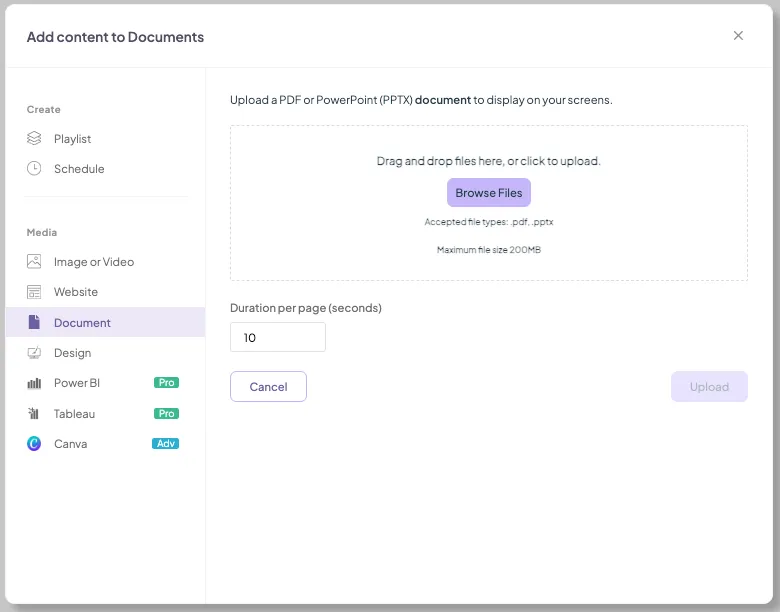
- Go to Media, click +Add, then choose Document
- Choose a slide duration at the bottom (how long each page will appear for)
- Pick your .pptx or PDF and click Upload
- The status field will then tell you when the media is ready to use.
Editing the duration
- Go to the Manage section and locate your document
- On the far right under the Edit column, press the ... and select configure
- Update the duration per page and press Save.
Adding to a playlist
- Open your Playlist
- Press Add -> Media, locate you document and click to add to the Playlist
Quick FAQ
My PowerPoint or PDF isn't uploading at 1920 x 1080 resolution?
You will need to check you slide size and ensure it is set to 1920 x 1080. PowerPoint uses a DPI (dots per inch) of 96 and Keynote uses a DPI of 72. If using Keynote (or another app that isn't PowerPoint) you may notice the resolution being smaller. You will need to check the DPI of your application, or in Keynote set your slide size to be 67.7333cm x 38.1cm (for 16:9 landscape) using the table below:
Pixels | Size at 96 DPI (cm) | Size at 72 DPI (cm) |
|---|---|---|
1920 px | 50.80 cm | 67.7333 cm |
1080 px | 28.5750 cm | 38.1 cm |
How do I change the slide/page duration
- Go to the Manage section and locate your document
- On the far right under the Edit column, press the ... and select configure
- Update the duration per page and press Save.
My PPT file isn't uploading
We don't support PPT files, so make sure to save it as a PPTX
Need a hand?
If you’d like help prepping files or checking export settings, get in touch - we’re always here.
Looking for something else?
We can’t wait to hear about it. Reach out to our sunshiney support and we'll be in touch in a flash.